Overview & Studio Philosophy
Why Cave Recorder separates rehearsal Sessions into independent t=0 Takes, captures live stereo Prints, and keeps track-level Overdub Passes organized.
1.1 Why Cave Recorder Exists#
Cave Recorder (caverec) is a multitrack studio recorder, live mixing console, automatic phase-alignment processor, and band collaboration workstation purpose-built for rehearsal rooms, live tracking spaces, and project studios.
Traditional digital audio workstations are modeled around a single linear timeline designed for solo production at a desk. When a full band plugs into an 18-channel audio interface for a three-hour rehearsal or live tracking session, a single continuous timeline creates immediate studio bottlenecks: finding a specific song run-through requires scrolling through hours of waveforms, spontaneous jams are lost when nobody remembers to press Record, bandmates wait days for someone to bounce rough mixes, and multi-microphone phase cancellation hollows out the drum kit and bass rig.
Cave Recorder solves four specific studio and rehearsal problems:
1.1.1 Independent Zero-Based Takes Instead of a 3-Hour Linear Timeline#
In a band rehearsal or tracking session, musicians play multiple run-throughs of songs alongside spontaneous improvisations. In Cave Recorder, every time you press Record (R) with Overdub Mode turned off, the transport creates a brand-new, self-contained Take (Take 001, Take 002, Take 003, ...) that starts at its own zeroed timeline origin (00:00:00.000, sample 0).
Two different Takes are never appended end-to-end down a multi-hour timeline and are never stacked on top of one another in the same timeline view. Instead, switching the active Take in the Top Transport Deck (< TAKE 001 >) or via ALT + [ and ALT + ] immediately switches the Waveform Timeline and Mix Console playback to that song's 00:00:00.000 origin while keeping the room's microphone assignments, channel names, subgroup routing, and console mix intact.
1.1.2 30-Minute Retroactive Capture Memory (RAM & RETRO)#
The best moments in a rehearsal room often happen when the transport is stopped while the band is warming up or exploring a groove between songs. Whenever the audio interface is active and the green RAM indicator is lit in the Top Transport Deck, Cave Recorder continuously retains the last 30 minutes of live multi-channel audio across all record-armed channels in dedicated system memory.
Pressing the RETRO button in the Top Deck (or pressing SHIFT + R) immediately rescues the rolling 30-minute capture memory to disk as a new numbered Take (Take<NNN>), complete with individual pre-fader multitrack stems and a reference stereo file.
1.1.3 Simultaneous Live Console Print and Raw Multitrack Stems#
During every Take, Cave Recorder writes two distinct sets of audio files to disk in real time:
- Raw Pre-Fader Multitrack Stems (
rec/): Every record-armed input channel (CH01throughCH18) writes a discrete, uncompressed 32-bit floating-point mono.wavstem tapped directly after input gain trim and prior to channel insert processing and fader moves. This guarantees clip-free archival stems for later mixing or overdubbing. - Live Stereo Master Bus Print (
mix/): Simultaneously, when2-TRKis armed on theMST MASTER BUS, a dedicated 2-track recorder tapped at the post-limiter output of the Master Bus captures the live stereo console mix (Print001.wav) with automatic Plugin Delay Compensation (PDC) latency trimming, including all channel EQ, VCA compression, tape saturation, subgroup processing, and auxiliary reverb and delay returns.
With a single click on FLAC PRINT or MP3 PRINT in the Session Reel (or automatically upon cloud upload when AUTO-FLAC ON UPLOAD or AUTO-MP3 ON UPLOAD is enabled), Cave Recorder encodes the live stereo Print to 24-bit lossless .flac and/or 320 kbps CBR .mp3 (with a Xing/Info seek header for direct playback inside the Google Drive web browser player) and links it into the project-wide _Mixes/ folder. Band members walk out of rehearsal with finished stereo reference mixes ready for phone, browser, or car playback, while the engineer retains pristine 32-bit floating-point raw stems.
1.1.4 Console-First Layout and Automatic Multi-Mic Phase Alignment#
Cave Recorder eliminates nested plugin windows and hidden routing matrices in favor of a fixed, dark-chassis studio console interface. Input gain trim, polarity inversion (Ø), per-channel phase alignment (Φ), an 8-slot reorderable processor rack (12-band parametric EQ with dual-trace spectrum analyzer, analog-modeled VCA compressor, tape saturation, and CLAP audio plugins), stereo Aux Sends (RVB and DLY), Subgroup Bus routing (SUB 1..16), and 100 mm logarithmic faders are always accessible directly on the console faceplate.
When recording a drum kit or multi-miked guitar and bass cabinets, acoustic arrival-time differences between close microphones, overheads, and room microphones cause comb filtering and low-frequency cancellation. Clicking ALIGN ALL in the Top Deck (or pressing a custom shortcut assigned in KEYMAP) analyzes the recorded multi-channel performance against your chosen reference microphone and applies sub-sample time delay (us / smp) and polarity (Ø) corrections across the console in one step.
1.2 The Four-Tier Recording Hierarchy#
Cave Recorder organizes every recording into a strict four-tier studio hierarchy:
Project ---> Session ---> Take (t = 0) ---> Pass (Rec001 / Rec002-OD)On disk, this hierarchy maps cleanly to human-readable folders and self-describing filenames inside your Cave Recorder Library Root:
<LibraryRoot>/
├── .caverec/
│   └── projects.json                      # Library project registry
└── GF/                                    # 1. PROJECT folder (Tag: GF)
    ├── .caverec_project.json              # Cloud sync manifest
    ├── _Mixes/                            # Project Prints & Mixdowns
    │   ├── GF_20261020-1_Take001_Print001_1947.flac
    │   ├── GF_20261020-1_Take001_Print001_1947.mp3
    │   ├── GF_20261020-1_Take001_Mix001_2130.flac
    │   └── GF_20261020-1_Take001_Mix001_2130.mp3
    └── GF_20261020-1_Rehearsal/           # 2. SESSION folder
        ├── GF_20261020-1_session.json     # Console, routing & markers
        ├── snapshots/                     # Point-in-time Snapshots
        │   ├── GF_20261020-1_Snap001_20261020T195012Z.json
        │   └── GF_20261020-1_Snap002_20261020T211500Z.json
        ├── Take001_1947_SongA/            # 3. TAKE 001 (t = 0)
        │   ├── GF_20261020-1_Take001_take.json
        │   ├── rec/                       # 4. PASS files (Base + OD)
        │   │   ├── GF_20261020-1_Take001_01-KickIn_Rec001_1947.wav
        │   │   ├── GF_20261020-1_Take001_02-SnrTp_Rec001_1947.wav
        │   │   ├── GF_20261020-1_Take001_04-GtrAmp_Rec001_1947.wav
        │   │   └── GF_20261020-1_Take001_04-GtrAmp_Rec002-OD_2015.wav
        │   ├── mix/                       # Live Prints & Mixdowns
        │   │   ├── GF_20261020-1_Take001_Print001_1947.wav
        │   │   ├── GF_20261020-1_Take001_Print001_1947.flac
        │   │   ├── GF_20261020-1_Take001_Print001_1947.mp3
        │   │   ├── GF_20261020-1_Take001_Mix001_2130.flac
        │   │   └── GF_20261020-1_Take001_Mix001_2130.mp3
        │   └── bounce/                    # Offline Stem Bounces
        │       └── GF_20261020-1_Take001_01-KickIn_Bounce001_2135.wav
        └── Take002_1958_ImprovJam/        # 3. TAKE 002 (t = 0)
└── ...| Studio Entity | Scope | On-Disk Pattern | Purpose & Studio Behavior |
|---|---|---|---|
| Project | Band, artist, or musical venture | <LibraryRoot>/<ProjectTag>/ |
Top-level workspace (for example, Grottfolk with tag GF, or Miscellaneous with tag MISC). Contains all Sessions for that band plus a unified _Mixes/ folder for rapid listening and cloud sharing. Managed via the PROJECT modal. |
| Session | Single rehearsal night, tracking day, or studio gathering | <ProjectTag>/<SessionID>_<Tag>/ |
Defines the room's physical microphone setup, channel strip names, input routing, subgroup buses, and console processing shared across every Take recorded that day. Session dates roll over at 08:00 local time so late-night recordings after midnight stay grouped with the same evening session. |
| Take | Complete multitrack song run-through or jam (t = 0) |
Take<NNN>_<Stamp>[_<TakeTag>]/ |
An independent multitrack recording starting at 00:00:00.000. Pressing Record (R) when Overdub Mode (OD) is off always creates a new numbered Take (Take 001, Take 002, ...) and switches the active timeline to that Take. |
Base Pass (Rec001) |
Initial track-level recording inside a Take | rec/*_<CC>-<Name>_Rec001_<Stamp>.wav |
The original 32-bit float pre-fader mono stem captured on an armed channel strip (PASS 01) when the Take was first recorded from 00:00:00.000. |
Overdub Pass (Rec002-OD) |
Layered track-level recording inside an existing Take | rec/*_<CC>-<Name>_Rec<MMM>-OD_<Stamp>.wav |
Additional track-level performance (OD 02, OD 03, ...) captured inside the currently active Take when Overdub Mode (OD, O) is latched on the transport bar. |
| Pass Lanes | Expandable track sub-lanes in Waveform Timeline | Stored in *_Take<NNN>_take.json |
Visual lanes (PASS 01 Base Pass and OD 02, OD 03 Overdub Passes) expanded in WAVEFORM TIMELINE (CMD + 2 / CTRL + 2) with E (and collapsed with SHIFT + E) for auditioning (Use PASS 01 / ★ OD 02), muting (M), and removing (Del) passes within the active Take. |
Print (Print<NNN>) |
Real-time post-Master-Bus stereo recording | mix/*_Take<NNN>_Print<NNN>_<Stamp>.<wav|flac|mp3> |
Captured live alongside the raw stems while tracking a Take when 2-TRK is armed on the Master Bus. Converting a Print to 24-bit .flac (FLAC PRINT) and/or 320 kbps CBR .mp3 (MP3 PRINT) links it into <ProjectTag>/_Mixes/ for immediate band playback without waiting for an offline render. |
Mixdown (Mix<NNN>) |
Offline Master Bus stereo render | mix/*_Take<NNN>_Mix<NNN>_<Stamp>.<wav|flac|mp3> |
Faster-than-real-time stereo Master Bus render of a Take (triggered via BOUNCE on the Master Bus with independent FLAC and MP3 format toggles, or in the Session Reel) after adjusting faders, EQ, dynamics, bus processing, or Pass Lane selections. |
Stem Bounce (Bounce<NNN>) |
Offline post-processor track or subgroup render | bounce/*_Take<NNN>_<Target>_Bounce<NNN>.wav |
Offline render of an individual channel strip or Subgroup Bus capturing all insert processing and phase alignment for delivery to external remixing workflows. |
Snapshot (Snap<NNN>) |
Immutable console state capture | snapshots/<SessionID>_Snap<NNN>_<UTC>.json |
Point-in-time capture of the entire Mix Console state (faders, pans, EQ bands, compressor thresholds, routing, and active Pass Lane selections), created automatically after every recording pass or manually via SNAP MANUAL (CMD + S / CTRL + S). |
| Present Stash | Automatic live console backup during Snapshot audition | Held in working session memory | Whenever you audition a historical Snapshot in the Session Reel, Cave Recorder preserves your current live console state in the Present Stash so you can toggle A/B PRESENT STASH or click RETURN TO PRESENT (BACKSPACE) without losing a single fader move. |
1.3 Tour of the Studio Workspace#
Cave Recorder opens into a dark studio console workspace divided into three horizontal tiers: the persistent Top Transport & Session Header Deck, the Upper Inspector Wells, and the Lower Console Channel & Bus Strips.
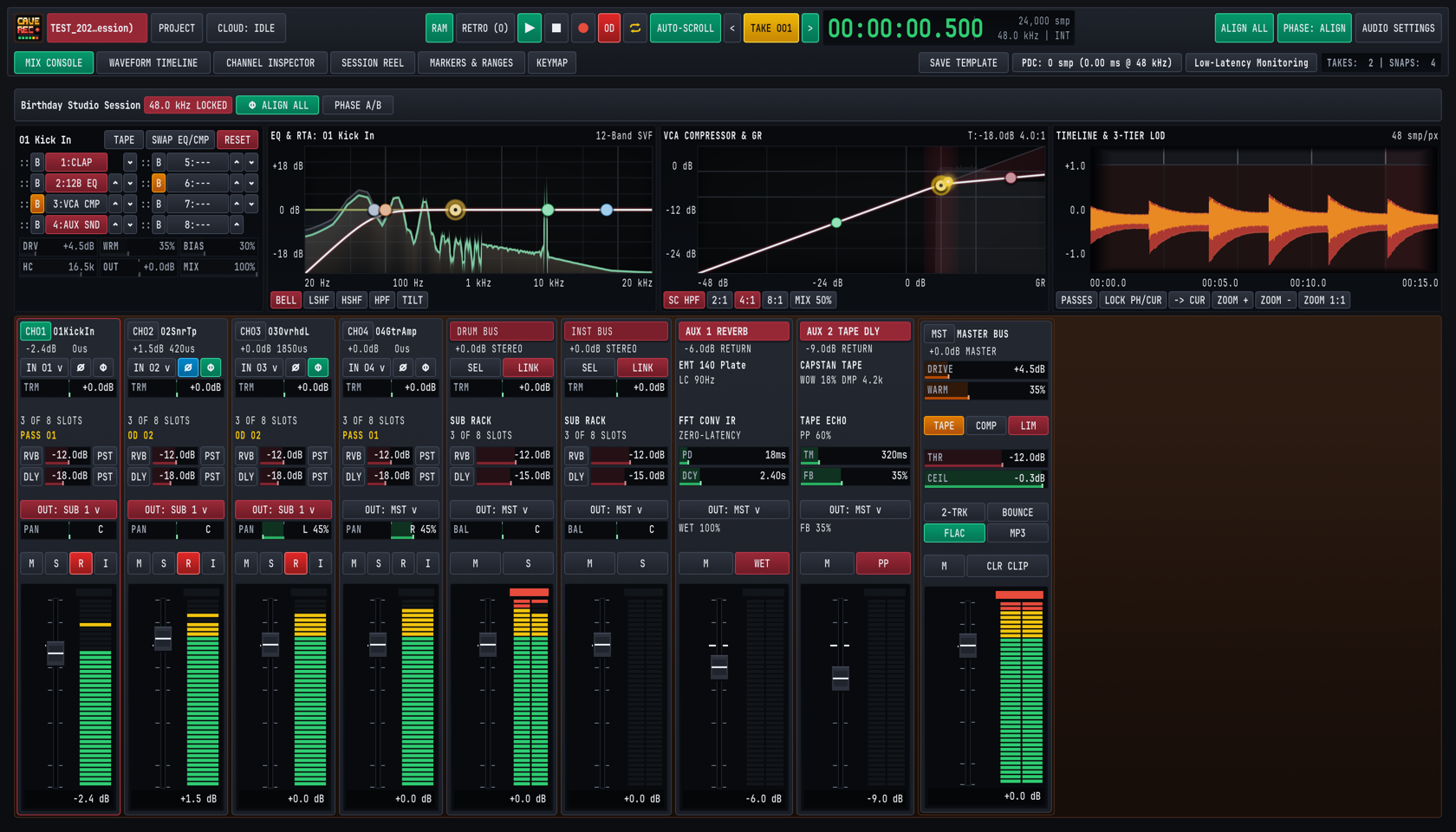
- Top Transport & Session Header Deck (Top): Remains pinned at the top of the screen across all six workspace views (
MIX CONSOLEthroughKEYMAP). Houses project and session selection, Google Drive cloud sync status, 30-minute retroactive memory controls, main transport buttons, the active Take selector, high-precision digital timecode and sample counters, global multi-mic phase alignment controls, and latency diagnostics. - Upper Inspector Wells (Middle): Displays four side-by-side real-time visualizers and editors for the currently selected channel strip or Subgroup Bus:
- 8-Slot Reorderable Processor Rack & Tape Controls (Left Well): Shows slots
1through8(1:CLAP,2:12B EQ,3:VCA CMP,4:AUX SND, ...), per-slot bypass (B), up/down slot reordering arrows, a dedicatedTAPEsaturator enable/bypass toggle with analog tape parameters (DRV,WRM,BIAS,HC,OUT,MIX),SWAP EQ/CMP, and channelRESET. - 12-Band Parametric EQ & Dual-Trace RTA Spectrum Analyzer (Center-Left Well): Interactive Bode magnitude curve with draggable filter nodes (
BELL,LSHF,HSHF,HPF,TILT) superimposed over a pre-EQ and post-EQ real-time spectrum trace (20 Hzto20 kHz). - VCA Compressor & Gain Reduction Transfer Curve (Center-Right Well): Displays the compressor knee and transfer curve (
-48 dBto0 dB), input/output threshold markers, sidechain high-pass filter (SC HPF), ratio presets (2:1,4:1,8:1), parallel blend (MIX 50%), and real-time Gain Reduction (GR) metering. - Upper Mini-Timeline & Multi-Tier Waveform Overview (Right Well): Displays the composite waveform of the active Take with playhead tracking,
PASSESexpansion shortcut,LOCK PH/CUR,-> CUR, and zoom controls (ZOOM +,ZOOM -,ZOOM 1:1).
- 8-Slot Reorderable Processor Rack & Tape Controls (Left Well): Shows slots
- Lower Console Strips (Bottom): Houses up to 18 Input Channel Strips (
CH01..CH18), stereo Subgroup Bus Strips (DRUM BUS,INST BUS), dedicated stereo Aux Return Strips (AUX 1 REVERBwith zero-latency convolution IR andAUX 2 TAPE DLYwith capstan tape echo), and theMST MASTER BUSstrip with Master Tape, Master Compressor, brickwall Limiter, live2-TRKPrint record arm, independentFLACandMP3format toggles, and one-clickBOUNCEoffline Mixdown render controls.

1.3.1 Top Deck Row 1: Session Identity, Transport, Timecode & Phase Controls#
The top row of the header deck is organized into three functional clusters from left to right:
| Cluster | Control / Badge | Keyboard Shortcut | Studio Function |
|---|---|---|---|
| Left: Session & Cloud | Active Session Pill (TEST_202...ession)) |
Status Indicator | Displays the currently loaded Session ID and Session Name. Highlights in studio burgundy when a live session is active on disk. |
| Left: Session & Cloud | PROJECT |
CMD + O (macOS) / CTRL + O (Win/Linux) | Opens the Project and Session Browser modal to switch Projects, create a new Session from a template, link a remote shared project, or open a recent Session. |
| Left: Session & Cloud | CLOUD: IDLE |
Mouse Click | Opens the Cloud Sync Quick Controls popover (AUTO-FLAC ON UPLOAD, AUTO-MP3 ON UPLOAD, SYNC SESSION FULL, SYNC SESSION MIXES) and displays real-time Google Drive transfer status. |
| Center: Transport & Take | RAM |
Mouse Click | Enables or disables the continuous 30-minute retroactive capture memory across all armed input channels. Glows emerald green when active. |
| Center: Transport & Take | RETRO (0) |
SHIFT + R | Flushes the rolling 30-minute retroactive capture memory to disk as a new numbered Take and increments the rescued-take counter. |
| Center: Transport & Take | Play (▶) |
SPACE | Starts or pauses playback of the active Take from the current playhead position. Glows green while transport is rolling. |
| Center: Transport & Take | Stop (■) |
SHIFT + SPACE | Stops playback or active recording immediately and finalizes open audio files and post-recording Snapshots. |
| Center: Transport & Take | Record (●) |
R | Starts or stops multitrack recording. Creates a new t = 0 Take (Take<NNN>) when OD is off, or records a new Overdub Pass (Rec<MMM>-OD) inside the active Take when OD is latched. |
| Center: Transport & Take | OD (Overdub Mode) |
O | Latches Overdub Mode (glows red when active). While latched, pressing Record (R) records new track-level Overdub Passes on armed channels while playing back existing tracks of the active Take. |
| Center: Transport & Take | Cycle / Loop (⇄) |
C | Toggles continuous loop playback and loop overdubbing across the active Take range. |
| Center: Transport & Take | AUTO-SCROLL |
Mouse Click | Keeps the Waveform Timeline viewport following the advancing playhead during playback and recording. |
| Center: Transport & Take | < TAKE 001 > |
ALT + [ / ALT + ] | Steps backward or forward through the Session's non-deleted Takes, immediately loading that Take's 00:00:00.000 timeline and Pass Lanes. |
| Center: Transport & Take | 00:00:00.500 / 24,000 smp |
Readout | High-contrast emerald LED timecode readout (HH:MM:SS.mmm) paired with the exact sample frame position (24,000 smp) within the active Take. |
| Center: Transport & Take | 48.0 kHz | INT |
Readout | Displays the active hardware sample rate (44.1, 48.0, 88.2, or 96.0 kHz) and digital clock lock state (INT). |
| Right: Phase & Hardware | ALIGN ALL |
Mouse Click (Bindable in KEYMAP) |
Runs automatic multi-microphone arrival-time and polarity correlation across all active channels relative to the reference channel. |
| Right: Phase & Hardware | PHASE: ALIGN |
Mouse Click | Toggles global phase alignment processing between active (PHASE: ALIGN) and bypassed (PHASE: BYP) for instant A/B listening. |
| Right: Phase & Hardware | AUDIO SETTINGS |
CMD + , (macOS) / CTRL + , (Win/Linux) | Opens the Audio Device & Latency Settings modal to configure interfaces, sample rate, buffer size, and hardware loopback calibration. |
1.3.2 Top Deck Row 2: Workspace View Tabs, Templates & Latency Diagnostics#
The second row of the Top Deck provides direct navigation across Cave Recorder's six workspace views on the left and session template and latency management on the right:
| Control / View Tab | Keyboard Shortcut | Workspace Purpose |
|---|---|---|
MIX CONSOLE |
CMD + 1 (macOS) / CTRL + 1 (Win/Linux) | Full studio mixing console with Upper Inspector Wells, 18 input strips, Subgroup Buses, Aux Returns, and Master Bus. Detailed in Chapter 4: Mix Console, Signal Flow & Channel Strips. |
WAVEFORM TIMELINE |
CMD + 2 (macOS) / CTRL + 2 (Win/Linux) | Multi-track 2D zoomable waveform editor, expandable Pass Lanes for overdub comping, marker flags, loop ranges, and Take splitting. Detailed in Chapter 6: Waveform Timeline, Pass Lanes, Markers & Ranges. |
CHANNEL INSPECTOR |
CMD + 3 (macOS) / CTRL + 3 (Win/Linux) | Dedicated full-screen channel and Subgroup Bus workbench with expanded 12-band EQ, Dual-Trace RTA, VCA Compressor, Gate, Tape Saturation, and CLAP plugin editors. Detailed in Chapter 5: Built-In Processors, Phase Alignment & CLAP Plugins. |
SESSION REEL |
CMD + 4 (macOS) / CTRL + 4 (Win/Linux) | Session dashboard containing the Takes Catalog, one-click FLAC and MP3 Print encoding, offline Mixdown and Stem Bounce rendering, undo history, Snapshots, Present Stash A/B comparison, and Cloud Sync controls. Detailed in Chapter 7: Session Reel, Mixdowns, Snapshots, Disk Layout & Cloud Sync. |
MARKERS & RANGES |
CMD + 5 (macOS) / CTRL + 5 (Win/Linux) | Sortable tabular manager for all Take markers (M001..) and loop/export ranges (R001..), with one-click playhead jump (GO TO) and range-to-Take extraction (NEW TAKE). Detailed in Chapter 6: Waveform Timeline, Pass Lanes, Markers & Ranges. |
KEYMAP |
CMD + 6 (macOS) / CTRL + 6 (Win/Linux) | Interactive keyboard shortcut reference and custom keybinding editor with live conflict detection across all 58 studio actions. Detailed in Chapter 8: Action, Mouse Gesture & Keyboard Shortcut Reference. |
SAVE TEMPLATE |
Mouse Click | Opens the Save Mix Console as Template popover to store current channel names, routing, and processor racks as a reusable Session Template (excluding audio takes and undo history). |
PDC: 0 smp (0.00 ms @ 48 kHz) |
Mouse Click | Opens the Latency & Plugin Delay Compensation (PDC) Transparency Breakdown popover showing per-track and per-bus sample compensation and roundtrip I/O offsets. |
Low-Latency Monitoring |
Mouse Click | Bypasses high-latency lookahead or external plugins on record-armed monitoring paths during overdubbing so musicians hear zero-lag foldback. |
TAKES: 2 | SNAPS: 4 |
Mouse Click | Live tally of active Takes and saved console Snapshots in the current Session. Clicking opens the Session Reel. |