Waveform Timeline, Pass Lanes, Markers & Ranges
2D waveform scrub-zooming, expandable Pass Lanes for overdub comping, dropping cue markers on the fly, defining loop ranges, and splitting Takes.
Every multitrack recording in Cave Recorder is a self-contained Take with its own timeline starting at 00:00:00.000 (t = 0). Rather than stringing an entire evening of rehearsals along a multi-hour horizontal scroll bar or stacking separate songs on top of one another, the timeline always focuses on one active Take at a time. Within that active Take, you can scrub and zoom sample-accurate waveforms, expand Pass Lanes to comp track-level overdubs, drop timestamped cue markers on the fly, loop rehearsal sections, and split long jams into individual song Takes.
6.1 Navigating the WAVEFORM TIMELINE View & Upper Mini-Timeline Well#
Cave Recorder provides two synchronized timeline viewports for the currently active Take:
- Upper Mini-Timeline Well (
TIMELINE & 3-TIER LODon the Mix Console): Located in the right-hand well of the Upper Inspector Row on theMIX CONSOLEview (CMD/CTRL + 1). It displays the waveform of the currently inspected track alongside quick-access transport and zoom keys so you can scrub, zoom, and switch Passes without leaving the faders. - Full-Screen
WAVEFORM TIMELINEWorkspace (CMD/CTRL + 2): Displays all active tracks simultaneously with dedicated Marker (MKR) and Range (RNG) lanes, per-track headers, expandable Pass Lanes, and a two-row editing toolbar.
6.1.1 Three-Tier Waveform Detail (3-TIER LOD) & Viewport Readouts#
Both the Upper Mini-Timeline Well and the full-screen WAVEFORM TIMELINE view render audio using three-tier waveform detail (3-TIER LOD), covering full-song overview envelopes, medium phrase zoom, and individual sample-level waveform display. As you zoom from a 30-minute rehearsal jam down to a single snare transient, the display transitions across pre-computed resolution tiers so transient peaks remain sharp at every scale without frame drops.
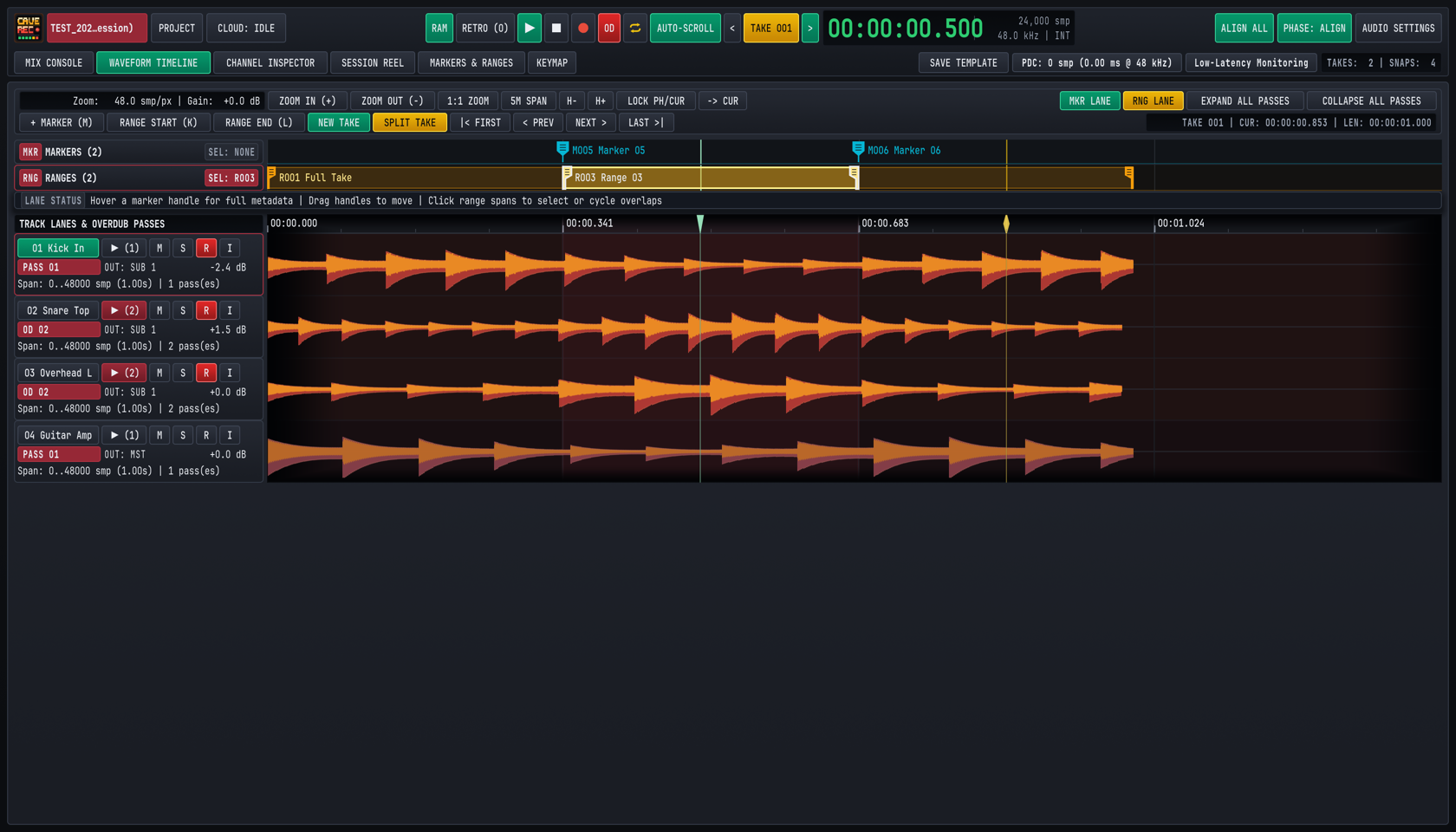
The upper-left readout of the WAVEFORM TIMELINE toolbar displays the current horizontal resolution in samples per pixel (Zoom: 48.0 smp/px) and the visual waveform gain offset (Gain: +0.0 dB), while the right-hand status readout confirms the active Take number, cursor timestamp, and total Take duration (TAKE 001 | CUR: 00:00:00.853 | LEN: 00:00:01.000).
6.1.2 Upper Mini-Timeline Well Controls#
At the bottom of the TIMELINE & 3-TIER LOD well on the Mix Console (Chapter 4: Mix Console, Signal Flow & Channel Strips), six dedicated hardware buttons control the inspected track's timeline:
| Control | Keyboard Shortcut | Function |
|---|---|---|
PASSES |
E | Expands or collapses the Pass Lanes for the currently inspected channel so you can switch or mute individual overdub passes directly from the console. |
LOCK PH/CUR |
Configurable in KEYMAP |
Toggles locking the Playhead (PH, green triangle) and the Position Cursor (CUR, amber diamond) together. When locked, clicking to place the cursor moves the playback start position simultaneously. When unlocked, the Position Cursor can be placed independently as an edit or zoom anchor while playback continues. |
-> CUR |
. | Snaps the transport Playhead immediately to the current Position Cursor location. |
ZOOM + |
= | Zooms horizontally into the waveform by one octave (halving the smp/px span). |
ZOOM - |
- | Zooms horizontally out of the waveform by one octave (doubling the smp/px span). |
ZOOM 1:1 |
0 | Fits the active Take to the viewport width (or resets to the default 1:1 overview span). |
6.1.3 Full-Screen WAVEFORM TIMELINE Toolbar & Track Headers#
Pressing CMD/CTRL + 2 (or clicking WAVEFORM TIMELINE in the navigation bar) opens the multi-track timeline workspace. Above the waveform canvas, two toolbar rows provide direct access to zoom, lane visibility, marker placement, and Take splitting:
- Row 1 (Viewport & Lane Controls):
ZOOM IN (+)/ZOOM OUT (-)/1:1 ZOOM: Step horizontal zoom in (=), step out (-), or reset horizontal zoom to the default 1:1 span (0).5M SPAN: Sets the visible horizontal window to a standard 5-minute (300.0 s) rehearsal span. New sessions and live recordings initialize to this 5-minute span automatically.H-/H+(Track Lane Height): Steps the vertical height of all track waveform lanes between56 px(compact 18-channel overview) and220 px(tall surgical transient inspection). Track header heights on the left stay locked 1:1 with their waveform lanes.LOCK PH/CUR&-> CUR: Identical to the Mini-Timeline well controls, allowing coupled or decoupled Playhead and Position Cursor operation.MKR LANE&RNG LANE: Toggle visibility of the dedicatedMARKERSandRANGESruler lanes above the audio tracks.EXPAND ALL PASSES&COLLAPSE ALL PASSES: Unrolls (E) or collapses (SHIFT + E) the overdub Pass Lanes across every track in the active Take simultaneously.
- Row 2 (Markers, Ranges & Take Split Bar):
+ MARKER (M)/RANGE START (K)/RANGE END (L): Drops a cue marker at the Playhead (M) or defines the start (K) and end (L) boundaries of a loop or song range.NEW TAKE&SPLIT TAKE: Extracts the active range as a new self-contained Take (NEW TAKE) or divides the active Take into two consecutive Takes at the current Playhead/Cursor position (SPLIT TAKE).|< FIRST/< PREV/NEXT >/LAST >|: Jumps the Playhead to the first marker (SHIFT + [ or HOME), previous marker ([), next marker (]), or final marker (SHIFT + ] or END) in the active Take.
Each row in the left-hand TRACK LANES & OVERDUB PASSES column displays the track number and scribble-strip name (01 Kick In), the Pass Lane disclosure button (▶ (1) or ▶ (2) showing the number of recorded Passes on that track in the current Take), Mute (M), Solo (S), Record Arm (R), and Input Monitor (I) switches, the active Pass badge (PASS 01 or OD 02), the output bus assignment (OUT: SUB 1 or OUT: MST), the channel fader readout (-2.4 dB), and the sample span summary (Span: 0..48000 smp (1.00s) | 2 pass(es)).
6.1.4 Complete Reference of Timeline Navigation & Zoom Gestures#
Cave Recorder supports fast one-handed 2D Scrub-Zooming directly on the timeline ruler and waveform canvas, alongside standard mouse wheel, trackpad, and keyboard navigation:
| Gesture / Action | Input / Shortcut | Behavior |
|---|---|---|
| Reposition Playhead / Cursor | Single-Click (< 4 px travel) on ruler or waveform canvas |
Places the crisp 1 px Playhead or Position Cursor at the clicked timestamp. Automatically snaps to Take start (00:00:00.000) and Take end boundaries within 8 px. |
| Bypass Boundary Snapping | Hold SHIFT or CMD/CTRL + Click | Places the Playhead or Position Cursor at the exact sub-sample mouse coordinate without snapping to Take boundaries. |
| 2D Ruler / Canvas Scrub-Zoom | Click + Drag Vertically (up/down) on ruler or canvas | Continuously zooms the timeline exponentially in or out anchored directly to the sample beneath the cursor (or around the Playhead when LOCK PH/CUR is active). |
| 2D Ruler Scrub / Canvas Pan | Click + Drag Horizontally (left/right) on ruler or canvas | Dragging horizontally on the ruler scrubs the Playhead across the Take. Dragging horizontally on the waveform canvas pans the visible time window left or right. |
| Nudge Timeline Cursor | LEFT / RIGHT (hold SHIFT for 10x step) |
Nudges the Position Cursor (and the Playhead when LOCK PH/CUR is active) backward or forward by a fine or coarse sample step. |
| Horizontal Scroll Pan | Two-Finger Horizontal Trackpad Scroll or SHIFT + Mouse Wheel | Smoothly pans the visible viewport backward or forward across the active Take. |
| Modifier Scroll Zoom | CMD/CTRL + Mouse Wheel | Zooms horizontally in or out anchored at the current mouse pointer position. |
| Step Zoom In / Out | ZOOM IN (+) (=) / ZOOM OUT (-) (-) |
Zooms horizontally in or out by one octave per press. |
Reset Zoom (1:1) |
1:1 ZOOM / ZOOM 1:1 (0) |
Resets horizontal zoom and scroll to the default 1:1 overview span. |
| Toggle Timeline Auto-Scroll | AUTO-SCROLL in Top Deck (configurable in KEYMAP) |
Follows the advancing Playhead automatically during playback and live recording, paging the viewport forward whenever the Playhead reaches the right edge. Manually panning during playback temporarily suspends following until re-engaged. |
| Snap Playhead to Cursor | -> CUR (.) |
Moves the green transport Playhead to the amber Position Cursor immediately. |
6.2 Recording Overdubs (OD) & Comping in Expandable Pass Lanes (PASSES)#
In Cave Recorder, session-level songs and track-level overdubs are strictly separated so your timeline never becomes cluttered:
- Base Pass (
Rec001, labeledPASS 01): When Overdub Mode (OD) is off (the default), pressing Record (R) creates a brand-new session Take starting at00:00:00.000. Every armed channel strip records its initial multitrack stem asRec001(PASS 01). - Overdub Pass (
Rec002-OD,Rec003-OD, ..., labeledOD 02,OD 03, ...): When you want to layer a second guitar solo, punch in a vocal fix, or try three alternate bass lines inside the currently active Take, latch the redODbutton in the Top Deck transport bar (O) and arm only the target track(s). Pressing Record (R) plays back the existing tracks of the active Take from00:00:00.000while recording a new Overdub Pass (OD 02,OD 03, ...) into the active Take'srec/folder and appending a new Pass Lane under each armed track.
6.2.1 Step-by-Step: Recording Multi-Pass Overdubs on a Track#
- Load the Target Take: Use the
</>buttons besideTAKE 001in the Top Deck (ALT + [ / ALT + ]) or clickLOAD TAKEin theSESSION REELview (CMD/CTRL + 4) to load the Take you want to overdub onto. - Disarm Backing Tracks & Arm the Overdub Track: On the Mix Console or in the left track header column of the
WAVEFORM TIMELINEview, disarm (Roff) the backing band tracks (drums, rhythm section) so they stream from disk, and arm (Rlit crimson) only the channel(s) you are overdubbing. Enable input monitoring (I/MON) if you are monitoring through Cave Recorder's console EQ and compression. - Latch Overdub Mode (
OD): ClickODin the Top Deck transport bar (or press O) so theODindicator illuminates red. - Optional Pre-Roll or Cycle Range: Position the Playhead a few bars before the section you want to overdub, or enable Cycle Loop (
⇄, C) across a defined range (Section 6.3). - Record the Overdub Pass: Press Record (R) to begin playback and capture
OD 02. Press Stop (SPACE or SHIFT + SPACE) when finished. Cave Recorder automatically promotes the newly recorded Overdub Pass (★ OD 02) as the active playback Pass on that track and captures a post-recording Snapshot.
6.2.2 Expanding Pass Lanes, Auditioning Passes & Comping Phrases#
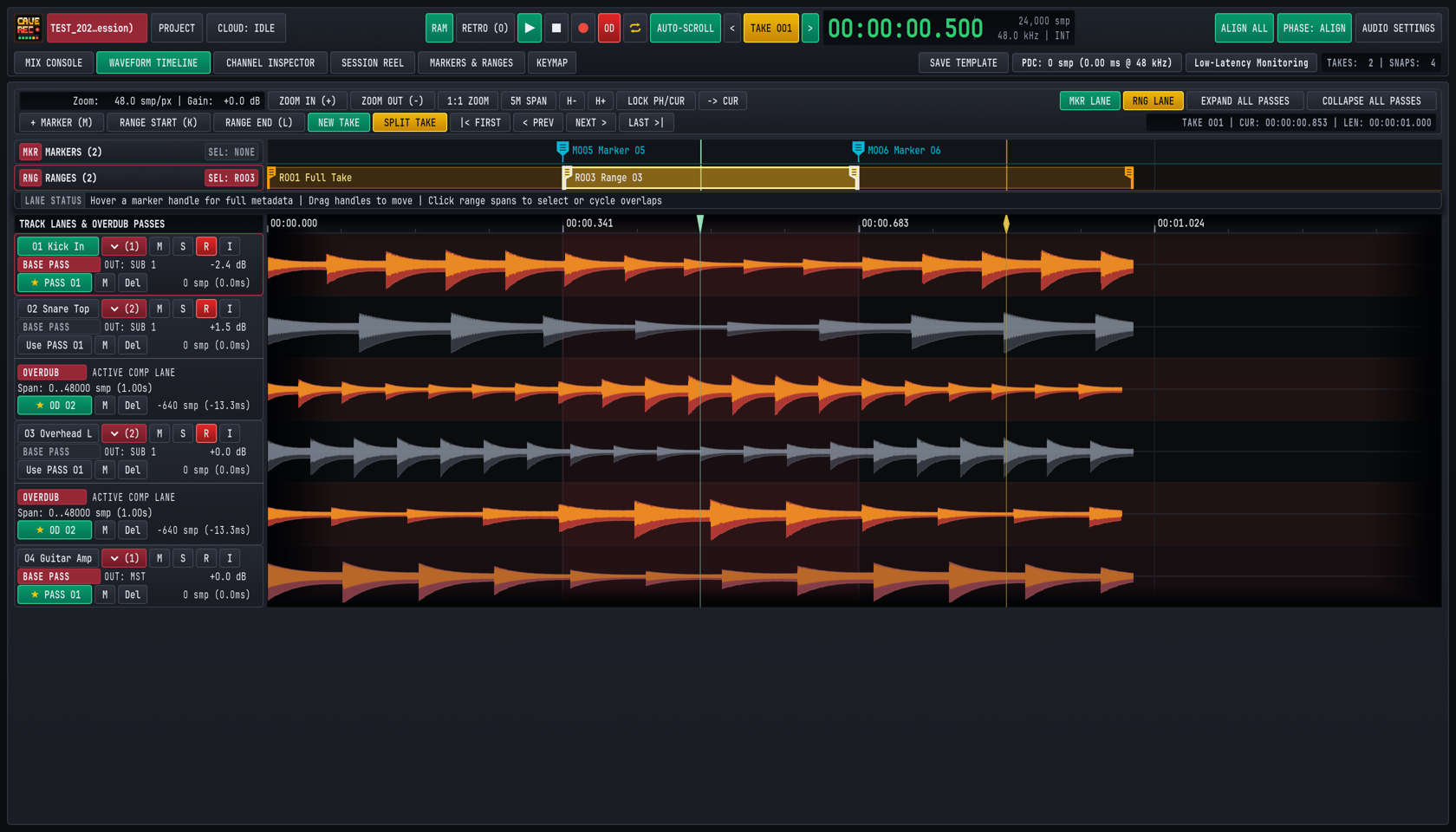
When a track within the active Take has more than one recorded Pass, the disclosure badge in the track header displays the total Pass count (for example, ▶ (2) on 02 Snare Top and 03 Overhead L).
- Expand or Collapse a Single Track's Pass Lanes:
- Click the
▶ (N)/▼ (N)badge in the track header on theWAVEFORM TIMELINEview. - Or select the track and click
PASSESin the Upper Mini-Timeline Well (or press E while in theCHANNEL INSPECTORview).
- Click the
- Expand or Collapse All Tracks' Pass Lanes:
- Click
EXPAND ALL PASSES(E) orCOLLAPSE ALL PASSES(SHIFT + E) in the upper-rightWAVEFORM TIMELINEtoolbar.
- Click
When expanded, each track unrolls its vertical stack of Pass Lanes in chronological order (BASE PASS PASS 01 at the top, followed by OVERDUB OD 02, OD 03, and so on):
- Visual Active vs. Standby Distinction: The currently active Pass Lane (labeled
ACTIVE COMP LANEwith a green★ PASS 01or★ OD 02badge) renders its waveform in bright amber-copper. Inactive Pass Lanes (labeledSTANDBY COMP LANEwith aUse PASS 01orUse OD 02button) render in muted slate-grey so you can immediately see which Pass is feeding the Mix Console channel strip. - Auditioning & Promoting Passes:
- Promoting a Pass on the
WAVEFORM TIMELINEView: ClickUse PASS 01(orUse OD 02,Use OD 03) in any standby Pass Lane header to promote that Pass as the active playback lane (ACTIVE COMP LANE) immediately. Because playback readers pre-buffer ahead of the Playhead, switching Passes during playback crossfades cleanly without clicks. - Promoting a Pass from the
MIX CONSOLEorCHANNEL INSPECTORView: ClickPASSESin the Upper Mini-Timeline Well (or press E in theCHANNEL INSPECTORview) to expand the inspected channel's Pass Lanes, and clickUse PASS <NN>orUse OD <NN>on the Pass you want to hear.
- Promoting a Pass on the
- Per-Pass Mute (
M) & Soft Delete (Del):- Click
Mon a Pass Lane to silence that Pass without changing your channel strip Mute state. - Click
Delon a flawed Pass Lane to mark that Pass as deleted in the session history. Because deletion is non-destructive, pressing CMD/CTRL + Z restores the Pass immediately.
- Click
- Comping Phrases Across Multiple Passes:
- When an overdub was punched in over a specific chorus or solo section (for example,
Span: 240000..480000 smp), promoting that Overdub Pass plays your new performance across its recorded span while allowing you to compare it directly against the underlyingPASS 01Base Pass or alternateOD 03passes. Every Pass promotion is recorded in the Undo history and stored in Console Snapshots (Chapter 7: Session Reel, Mixdowns, Snapshots, Disk Layout & Cloud Sync) so you can save and compare multiple comp combinations across the session.
- When an overdub was punched in over a specific chorus or solo section (for example,
6.3 Dropping Cue Markers & Defining Cycle Loop Ranges (MARKERS & RANGES)#
During a live rehearsal jam or playback review, you can drop timestamped Markers and define bounded Ranges without stopping the transport. Markers and Ranges appear both as interactive flags in the MKR and RNG lanes of the WAVEFORM TIMELINE view and as sortable, searchable rows in the dedicated MARKERS & RANGES workspace (CMD/CTRL + 5).
6.3.1 Dropping & Navigating Cue Markers on the Fly (M)#
Every Take automatically initializes with two boundary markers (M001 Take Start at 00:00:00.000 and M002 Take End at the end of the longest recorded stem, forming the default R001 Full Take range). To mark song transitions, solo entrances, or mix notes:
- Drop a Marker (M): Press M at any time during live recording or playback (or click
+ MARKER (M)in theWAVEFORM TIMELINEtoolbar orADD MARKER (M)in theMARKERS & RANGEStoolbar). Cave Recorder places a cyan standalone marker flag (M005 Marker 05,M006 Marker 06) at the exact sample position of the rolling Playhead (or at the Position Cursor when transport is stopped). - Reposition a Marker by Dragging: In the
MKR MARKERSlane of theWAVEFORM TIMELINEview, hover over any cyan marker flag to inspect its metadata, or click and drag the marker handle left or right to fine-tune its sample timestamp. - Jump Between Markers: Use the toolbar buttons or keyboard shortcuts to navigate between cue points instantly:
- Previous Marker (
< PREV/< PREV MKR): Press [. - Next Marker (
NEXT >/NEXT MKR >): Press ]. - First Marker in Take (
|< FIRST/|< FIRST MKR): Press SHIFT + [ or HOME. - Last Marker in Take (
LAST >|/LAST MKR >|): Press SHIFT + ] or END.
- Previous Marker (
6.3.2 Defining Ranges (K / L) & Cycle Loop Playback (⇄)#
A Range (R001, R003, ...) is a named time span bounded by a RANGE START marker and a RANGE END marker. Ranges are used for Cycle Loop playback, overdub punch/loop rehearsal, zooming to a song section, and extracting a song section as a new Take.
- Mark Range Start (
RANGE START (K)): Move the Playhead or Position Cursor to the beginning of the phrase (or press it live as the band hits the downbeat) and press K (or clickRANGE START (K)/SET RANGE START (K)). An amber status pill (RNG T01: START @ 00:00:00.853) appears in the toolbar indicating that a range start boundary is pending. - Mark Range End (
RANGE END (L)): When playback reaches the end of the section, press L (or clickRANGE END (L)/SET RANGE END (L)). Cave Recorder pairs the start and end boundaries, creates a new numbered Range span (such asR003 Range 03) in the amberRNG RANGESlane, and selects it as the active loop range. - Cancel a Pending Boundary (ESC): If you pressed K by mistake, press ESC or click
CANCEL PENDING RANGEto discard the uncompleted boundary. - Select, Drag, or Cycle Overlapping Ranges: In the
RNG RANGESlane above the waveforms, click any amber range bar to make it the active range (clicking repeatedly on overlapping spans cycles through them). Drag the left[or right]handle of any range bar in theRNGlane to adjust its start or end sample directly on the timeline. - Toggle Cycle Loop Playback (
⇄): Click the Cycle Loop button⇄in the Top Deck transport bar (or press C). When⇄is illuminated amber, playback loops continuously between the start and end boundaries of the active Range (or acrossR001 Full Takeif no sub-range is selected).
6.3.3 Managing, Renaming & Filtering in the MARKERS & RANGES View#
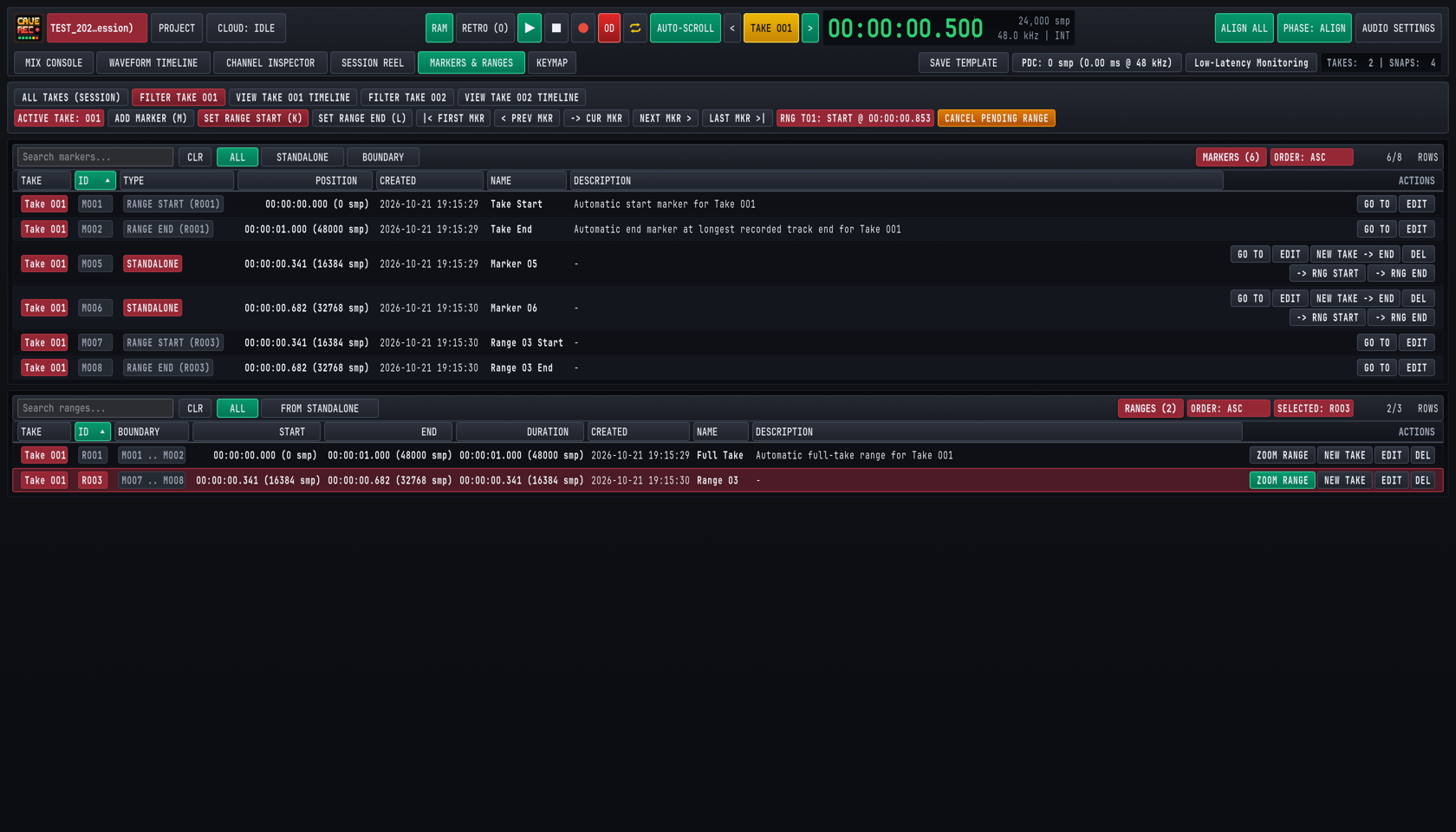
Pressing CMD/CTRL + 5 (or clicking MARKERS & RANGES in the workspace navigation bar) opens the MARKERS & RANGES management workspace, divided into two synchronized tables: MARKERS (top) and RANGES (bottom).
- Session-Wide vs. Per-Take Filtering: Use the top filter bar (
ALL TAKES (SESSION),FILTER TAKE 001,FILTER TAKE 002) to view cue points across every Take in the evening's Session at once, or isolate markers belonging to a single Take. ClickingVIEW TAKE 001 TIMELINEjumps directly toWAVEFORM TIMELINEwith that Take loaded. - Marker Type Filtering & Automatic Color Badges: Filter the upper table by
ALL,STANDALONE(crimsonSTANDALONEbadges, such asM005), orBOUNDARY(slateRANGE STARTandRANGE ENDbadges paired to a Range, such asRANGE START (R003)), or type intoSearch markers...to filter by marker name or description note. - Per-Marker Actions (
GO TO,EDIT,-> RNG START,-> RNG END,DEL):GO TO: Loads the owning Take (if not already active) and snaps the transport Playhead directly to that marker's exact sample position.EDIT: Opens inline editing fields to update the marker'sName(for example,Verse 2 Harmonies) and free-formDescriptionnote (SAVE M<NNN>/CANCEL), or clickPRESET MARKER HIGHLIGHT M<NNN>to emphasize key cue points.-> RNG START/-> RNG END: Promotes an existing standalone cue marker into the start or end boundary of a Range so you can drop single-key M markers during a live jam and turn them into bounded song ranges afterward.DEL: Deletes the marker (reversible via Undo CMD/CTRL + Z).
- Range Filtering (
ALL/FROM STANDALONE) & Per-Range Actions (ZOOM RANGE,NEW TAKE,EDIT,DEL):FROM STANDALONEFilter Pill: Filters theRANGEStable (alongsideALL) to show only Ranges whose start or end boundaries were promoted from standalone cue markers via-> RNG START/-> RNG END.ZOOM RANGE: Switches to theWAVEFORM TIMELINEview and zooms the horizontal viewport to frame that exact Range from edge to edge.EDIT: Opens inline fields to rename the Range (for example,R003 Chorus LooporSong 2 - Midnight Drive) and update its description.
6.4 Non-Destructive Take Splitting (Split Take at Playhead / Split by Markers)#
During a band rehearsal, musicians often hit Record once and play a continuous 25-minute block containing warm-up banter, three separate songs, and an improvised jam. Cave Recorder lets you carve that long continuous capture into independent, self-contained t = 0 Takes (Take 002, Take 003, Take 004) so each song gets its own 00:00:00.000 timeline, its own song tag, and its own stereo mixdown.
6.4.1 Three Ways to Split or Extract Independent Takes#
Cave Recorder provides three non-destructive workflows depending on whether you want to divide a Take in two or extract a specific marker/range span:
| Split / Extract Method | Where to Trigger | How It Works |
|---|---|---|
1. Split Take at Playhead / Cursor (SPLIT TAKE) |
Click SPLIT TAKE in the WAVEFORM TIMELINE toolbar |
Divides the active Take at the current Playhead/Cursor timestamp into two consecutive segments: the first part (00:00:00.000 to the split point) remains in the current Take, and the second part (from the split point to the end) becomes a brand-new t = 0 Take (Take<NNN>). |
2. Extract from Marker to End (NEW TAKE -> END) |
Click NEW TAKE -> END on any standalone marker row in the MARKERS & RANGES view (CMD/CTRL + 5) |
Extracts everything from that marker's sample timestamp through the end of the Take into a brand-new t = 0 Take (Take<NNN>), leaving the source Take's full duration untouched. |
3. Extract Bounded Range as New Take (NEW TAKE) |
Click NEW TAKE in the WAVEFORM TIMELINE toolbar (with a Range selected) or click NEW TAKE on any row in the RANGES table (CMD/CTRL + 5) |
Copies the exact sample span between the Range's START and END boundaries (R003) into a brand-new t = 0 Take (Take<NNN>) whose 00:00:00.000 origin corresponds to the start of that Range, leaving the source Take's span untouched. |
6.4.2 How Non-Destructive Splitting Preserves Stems, Passes & Phase Offsets#
When you divide a Take with SPLIT TAKE or extract a span with NEW TAKE:
- Zero Destructive File Overwrites & Full Undo: None of your original
.wavfiles on disk are ever overwritten or deleted. BothSPLIT TAKEandNEW TAKEare tracked in the Session's Undo history, so pressing CMD/CTRL + Z reverses the split or extraction immediately. - Sample-Zero (
t = 0) Alignment: Every multitrack stem in the newly created Take (Take<NNN>) starts at its own00:00:00.000timeline zero aligned to the split or range start point, with Broadcast Wave (bext) timecode metadata preserved. - Pass Structure & Console Routing Preserved: All recorded Base Passes (
Rec001) and Overdub Passes (Rec002-OD) that overlap the extracted span are preserved in their respective Pass Lanes, along with per-track phase alignment offsets, latency compensation metadata, and internal markers shifted relative to the new00:00:00.000origin. - Immediate Session Reel Registration: The newly created Take appears immediately in the
SESSION REELcatalog (Chapter 7: Session Reel, Mixdowns, Snapshots, Disk Layout & Cloud Sync) ready for tagging, live Print conversion, or offline Mixdown rendering.