Session Reel, Mixdowns, Snapshots, Disk Layout & Cloud Sync
Managing Takes, converting live Prints to FLAC and MP3, rendering offline Mixdowns and Stem Bounces, comparing Snapshots with Present Stash, disk naming rules, and Google Drive collaboration.
A typical three-hour band rehearsal or studio tracking night produces anywhere from five to twenty recorded Takes alongside evolving console mixes, overdub passes, and stereo mixes for the band group chat. Cave Recorder centralizes all session management inside the SESSION REEL workspace (CMD/CTRL + 4), combining a searchable Takes Catalog, one-click Print-to-FLAC and Print-to-MP3 conversion, offline Master Mixdowns and Stem Bounces, non-destructive Console Snapshots with Present Stash protection, a self-documenting disk layout, and built-in two-way Google Drive Cloud Sync.
7.1 Managing Takes in the SESSION REEL View#
Pressing CMD/CTRL + 4 (or clicking SESSION REEL in the workspace navigation bar) opens the Session Reel ledger for the currently open Session.
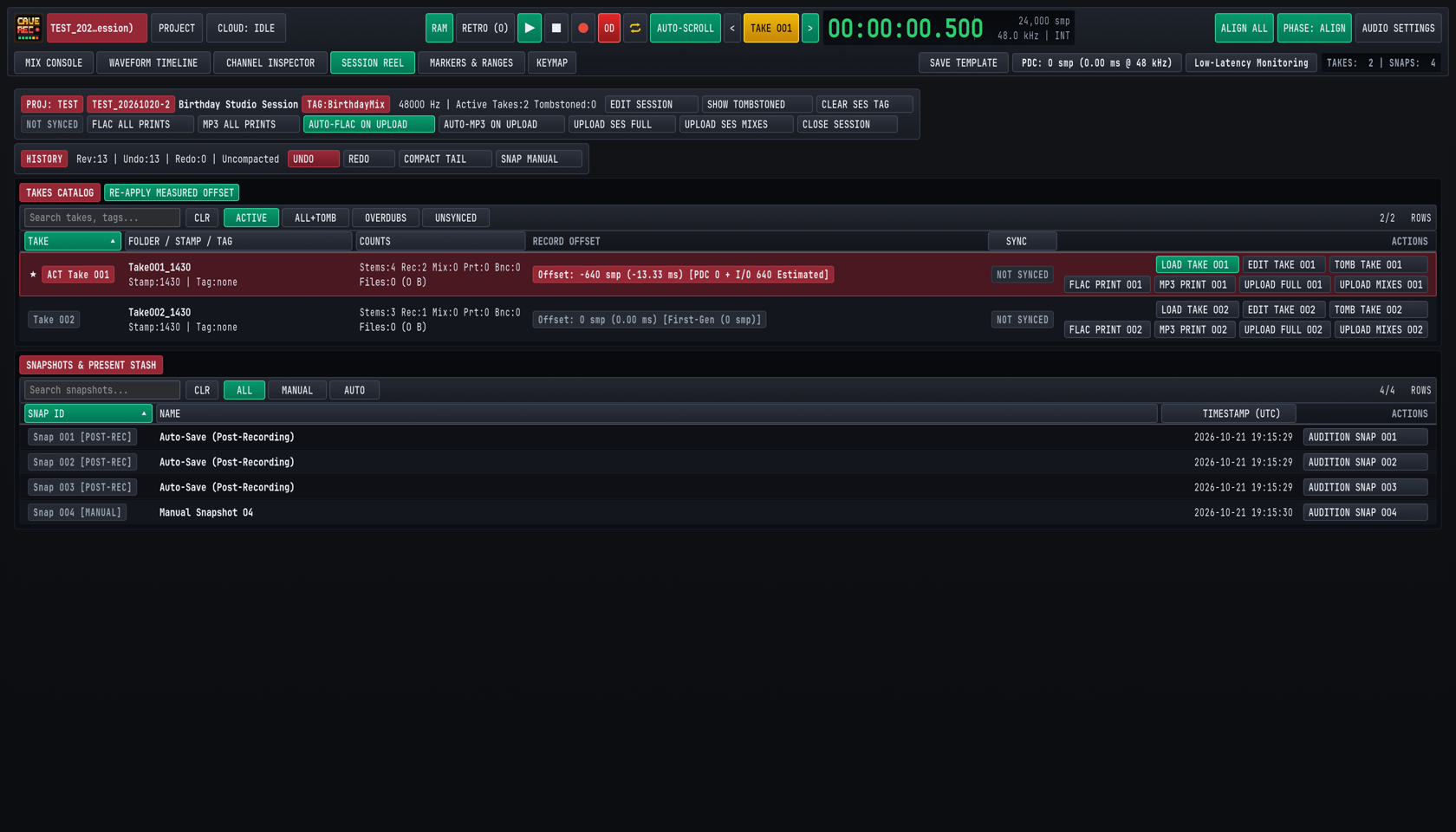
7.1.1 The Session Header & Undo/Redo History Bar#
At the top of the SESSION REEL view, two horizontal control bars summarize the active Session and its edit history:
- Session Metadata & Global Actions Bar:
- Displays the parent Project badge (
PROJ: TEST), the permanent Session ID (TEST_20261020-2), the human-readable Session display title (Birthday Studio Session), the optional folder tag (TAG:BirthdayMix), the hardware sample rate (48000 Hz), and the count of active and soft-deleted Takes. EDIT SESSION&CLEAR SES TAG: Rename the Session's display title or edit/clear its<SessionTag>. Editing a Session tag cleanly renames the Session folder on disk and updates all relative links in<ProjectTag>/_Mixes/without renaming any audio files inside.- Deleted Takes Toggle &
EMPTY TRASH: Toggle visibility of soft-deleted Takes in the catalog (paired with theALL+TOMBfilter pill below) or click the redEMPTY TRASHbutton when soft-deleted Takes are present to permanently remove their audio files from disk. FLAC ALL PRINTS,MP3 ALL PRINTS,AUTO-FLAC ON UPLOAD&AUTO-MP3 ON UPLOAD: Batch-convert all uncompressed live stereo Prints across the Session to lossless 24-bit.flacor 320 kbps CBR.mp3files, or automatically convert Prints to.flacand/or.mp3whenever uploading to cloud storage.UPLOAD SES FULL/UPLOAD SES MIXES/CLOSE SESSION: Trigger a full or mixes-only cloud sync for the entire Session, or close the Session and return to thePROJECTbrowser modal (CMD/CTRL + O).
- Displays the parent Project badge (
HISTORYBar (Reversible Undo/Redo & History Pruning):- Every fader drag, EQ node move, phase alignment, marker edit, Pass promotion, and Take deletion is tracked as a reversible step in the Session's command history (
Rev:13 | Undo:13 | Redo:0). Continuous knob or fader gestures automatically group into a single undo step when you release the mouse button. - Click
UNDO(CMD/CTRL + Z) orREDO(CMD/CTRL + SHIFT + Z) to step backward or forward through your session adjustments. - Click
COMPACT TAILto prune the oldest entries from a long undo history. Cave Recorder only compacts older undo steps when an earlier saved Snapshot on disk already covers that historical revision, ensuring no earlier console state is ever lost. - Click
SNAP MANUAL(CMD/CTRL + S) to capture an immediate point-in-time Console Snapshot (Section 7.3).
- Every fader drag, EQ node move, phase alignment, marker edit, Pass promotion, and Take deletion is tracked as a reversible step in the Session's command history (
7.1.2 Switching, Starring, Renaming & Deleting Takes in the TAKES CATALOG#
The TAKES CATALOG table lists every Take recorded or split during the Session. You can filter the catalog using the search box (Search takes, tags...) or the filter pills: ACTIVE (default, showing non-deleted Takes), ALL+TOMB (showing both active Takes and soft-deleted Takes), OVERDUBS (showing only Takes that contain Rec002-OD overdub passes), and UNSYNCED (showing Takes with local changes not yet uploaded to Google Drive).
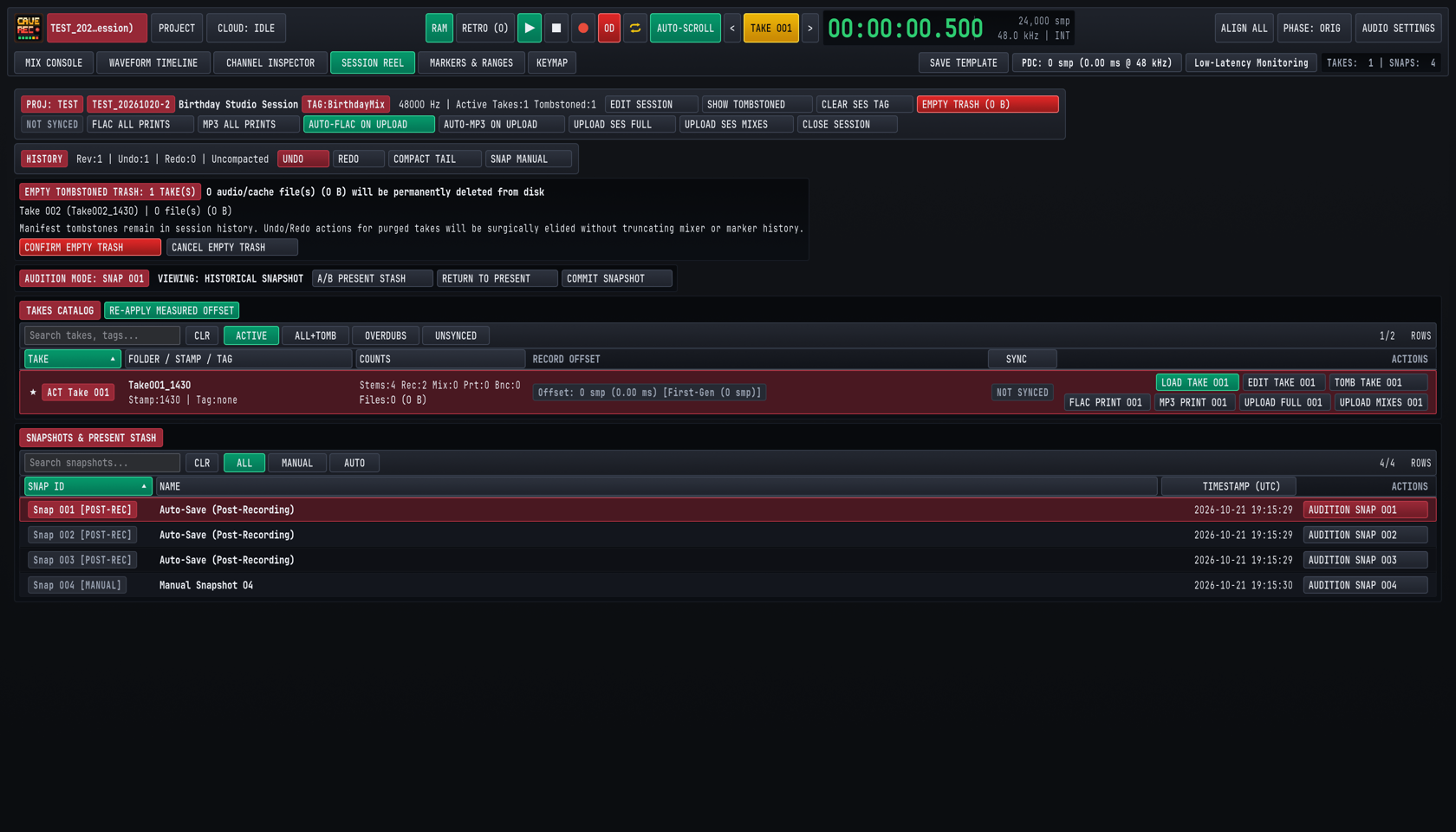
Each row in the TAKES CATALOG provides the following status columns and actions:
| Column / Action | Operation |
|---|---|
Favorite Star (★) |
Click the star icon on the far left of any row to mark a keeper Take. Starring a Take lets bandmates and engineers spot the best performance of a song at a glance. |
Active Take Badge (ACT Take 001) |
Highlights the Take currently loaded into the Mix Console and Waveform Timeline. To switch the active Take, click LOAD TAKE <NNN> in the ACTIONS column, or use the < and > buttons beside TAKE 001 in the Top Deck (ALT + [ and ALT + ]). |
FOLDER / STAMP / TAG |
Shows the on-disk Take folder name (Take001_1430), capture timestamp (Stamp:1430), and optional song tag (Tag:none or Tag:SongA). |
COUNTS |
Summarizes the audio assets inside the Take: multitrack stems (Stems:4), recording passes (Rec:2), rendered offline mixdowns (Mix:0), live stereo prints (Prt:0), and stem bounces (Bnc:0), plus total disk footprint. |
RECORD OFFSET & RE-APPLY MEASURED OFFSET |
Displays the roundtrip latency offset applied to overdub passes in that Take (Offset: -640 smp (-13.33 ms)). If you recalibrate hardware loopback latency in AUDIO SETTINGS (CMD/CTRL + ,), clicking RE-APPLY MEASURED OFFSET in the catalog header updates the alignment offset on the active Take. |
EDIT TAKE <NNN> |
Opens the Take metadata editor to rename the Take's song title, assign or change its alphanumeric <TakeTag> (for example, changing Take001_1947 to Take001_1947_MidnightDrive), and record multi-line rehearsal or mix notes. |
CONVERT TO REAL <NNN> & PURGE RETRO <NNN> |
Shown on Takes captured from the 30-minute rolling memory buffer (RETRO Takes, SHIFT + R). Click CONVERT TO REAL <NNN> to promote a retroactive memory capture into a permanent standard Session Take, or click PURGE RETRO <NNN> to discard an unwanted retroactive capture and reclaim disk space immediately. |
TOMB TAKE <NNN> (Soft Delete) |
Marks an unwanted false-start Take as deleted in the session history and hides it from the ACTIVE view. Soft-deleted Takes are never overwritten or re-downloaded during cloud sync, and can be restored at any time with UNDO (CMD/CTRL + Z) or by viewing ALL+TOMB. |
EMPTY TRASH (CONFIRM EMPTY TRASH) |
When one or more Takes have been soft-deleted, a red EMPTY TRASH button appears in the Session Reel header showing the exact byte count to be reclaimed. Clicking EMPTY TRASH opens a confirmation banner listing the exact Take folders and file counts to be removed from disk. Click CONFIRM EMPTY TRASH to permanently delete those audio files from your drive, or CANCEL EMPTY TRASH to keep them. Even after purging audio files via Empty Trash, the Take remains marked as deleted in the session history so deleted Takes are not re-downloaded during cloud sync. |
7.2 Live Stereo Prints vs. Offline Mixdowns & Stem Bounces#
Cave Recorder provides three distinct stereo and multitrack export workflows so you can share rough rehearsal recordings with the band in seconds or export studio-grade stems for external mastering.
7.2.1 Comparison of Export & Bounce Outputs#
| Output Type | Capture Mode | Signal Path & Destination | Studio Use Case |
|---|---|---|---|
1. Live Stereo Print (Print<NNN>) |
Real-time during every Take. Convert to .flac or .mp3 via FLAC PRINT <NNN>, MP3 PRINT <NNN>, FLAC ALL PRINTS, or MP3 ALL PRINTS. |
Live post-Master-Bus stereo mix saved to <TakeFolder>/mix/ and linked into <ProjectTag>/_Mixes/. |
Instant post-rehearsal listening on phones, web browsers, or band group chats without waiting for an offline render. |
2. Offline Stereo Mixdown (Mix<NNN>) |
Faster-than-realtime offline render (triggered via the Master Bus FLAC, MP3, and BOUNCE controls). |
Full Mix Console signal path (trims, phase delays, active Pass Lanes, 8-slot inserts, EQ, VCA compression, Subgroup/Aux buses, Master limiter) saved to <TakeFolder>/mix/ and linked into _Mixes/. |
Sharing polished stereo mixes in 24-bit FLAC or 320 kbps CBR MP3 after refining faders, EQ, dynamics, or overdub comps. |
3. Offline Stem Bounce (Bounce<NNN>) |
Faster-than-realtime offline multi-stem render. | Individual post-DSP Track channels (<CC>-<TrackName>) and/or Subgroup Buses (Bus<BB>-<BusName>) rendered from 00:00:00.000 into <TakeFolder>/bounce/. |
Delivering phase-aligned, delay-compensated instrument or bus stems (WAV or FLAC) for external remixing or mastering. |
7.2.2 Converting Live Stereo Prints to Lossless FLAC (FLAC PRINT) & 320 kbps MP3 (MP3 PRINT)#
While you are tracking a Take, Cave Recorder writes the live 2-track Master Bus print as an uncompressed .wav file (Print001_<Stamp>.wav) with automatic Plugin Delay Compensation (PDC) latency trimming so the audio engine expends zero processor time on compression during live recording. Once the transport stops:
- Convert a Single Take's Print: In the
SESSION REELview (CMD/CTRL + 4), clickFLAC PRINT 001(for a lossless 24-bit.flacfile) orMP3 PRINT 001(for a 320 kbps CBR.mp3file with a Xing/Info seek header for instant web-player scrubbing) in theACTIONScolumn of that Take row. - Convert All Prints in the Session: Click
FLAC ALL PRINTSorMP3 ALL PRINTSin the Session Reel header bar to convert every unconverted.wavPrint across all active Takes in one batch. - Safe Write & Project
_Mixes/Linking: Cave Recorder encodes the 24-bit.flaccounterpart (50-60%smaller than the source.wavfile) or 320 kbps CBR.mp3counterpart in the background before finalizing the file on disk. If local disk space ever runs out during encoding, any incomplete file is removed immediately so corrupt files never appear on disk. Once converted, theFLAC PRINT 001orMP3 PRINT 001button illuminates in its active state and Cave Recorder automatically places a relative link to the converted file inside the top-level<ProjectTag>/_Mixes/folder.
7.2.3 Rendering Offline Stereo Mixdowns & Stem Bounces#
After you refine channel EQ, VCA compression, multi-mic phase alignment (Chapter 5: Built-In Processors, Phase Alignment & CLAP Plugins), or overdub Pass selections (Chapter 6: Waveform Timeline, Pass Lanes, Markers & Ranges), you can render an updated stereo Mixdown (Mix<NNN>) or multitrack Stem Bounce (Bounce<NNN>) faster than real time:
- Load and Verify the Take: Load the target Take into the console (
LOAD TAKE <NNN>) and verify your mute, solo, active Pass Lane, and Master Bus limiter settings. - Render an Offline Stereo Mixdown (
Mix<NNN>): On the Master Bus strip (Chapter 4: Mix Console, Signal Flow & Channel Strips), toggleFLAC(24-bit lossless.flac),MP3(320 kbps CBR.mp3with a Xing/Info seek header), or both simultaneously, and clickBOUNCE. Cave Recorder processes the entire Take from00:00:00.000through the full console signal path, increments the sequential mix number (Mix001,Mix002, ...), writes the rendered file(s) into<TakeFolder>/mix/, and links them into<ProjectTag>/_Mixes/. When bothFLACandMP3are selected, a singleBOUNCEclick renders both files under the sameMix<MMM>number. - Render Processed Track or Subgroup Stems (
Bounce<NNN>): When exporting stems for an external mix or mastering session, Cave Recorder renders Individual Track Stems (01-Kick-In,02-Snare-Top, ...) and/or Stereo Subgroup Bus Stems (Bus01-Drum-Bus,Bus02-Guitar-Bus, ...) into<TakeFolder>/bounce/inWAVorFLAC. Every bounced stem starts at exact sample0(00:00:00.000) with full Plugin Delay Compensation applied so all stems line up sample-accurately when dragged into any external workstation.
7.3 Non-Destructive Console Snapshots & Present Stash (SNAPS)#
A Console Snapshot (Snap 001, Snap 002, ...) is a complete, point-in-time capture of your entire mixing console and timeline comp state stored as a compact JSON file inside <SessionFolder>/snapshots/. Because Snapshots reference your existing audio stems rather than duplicating .wav files on disk, you can save dozens of mix variations per Session with near-zero disk footprint.
7.3.1 What a Snapshot Captures & Automatic Snapshot Policies#
Every Snapshot records:
- All input channel strip parameters (input trim, 180-degree polarity invert, microsecond acoustic phase delay, reorderable 8-slot processing rack order, 12-band Parametric EQ nodes, VCA Compressor settings, Tape Saturation, CLAP plugin states, Aux send levels and tap points, pan, fader gain, mute, solo, and output bus routing).
- All stereo Subgroup Bus (
SUB 1..16), Aux Return (AUX 1Convolution Reverb,AUX 2Stereo Tape Delay), and Master Bus parameters. - Active Pass Lane selections (
PASS 01,OD 02, ...) and per-pass mute states across every Take in the Session. - The complete compact Undo/Redo history stack at that moment in time, so restoring a Snapshot also restores its undo timeline.
Snapshots are created in three ways and can be filtered in the SNAPSHOTS & PRESENT STASH table at the bottom of the SESSION REEL view using the ALL, MANUAL, and AUTO pills:
- Manual Snapshot (
[MANUAL]): ClickSNAP MANUALin the Session Reel history bar or press CMD/CTRL + S from any view to save a named milestone (for example,Manual Snapshot 04orPre-Vocal-Overdub Balance). - Post-Recording Auto-Save (
[POST-REC]): Automatically captured immediately after every normal recording stop (Auto-Save (Post-Recording)), preserving the exact monitor mix and Pass state that was active when the band finished the Take. (If you abort a false start using the clean-restart discard stop command, the post-recording auto-save is suppressed.) - Periodic 20-Minute Auto-Save (
[AUTO]): Automatically captured every 20 minutes while a Session is open, provided at least one console or timeline action has occurred since the last saved Snapshot.
7.3.2 Auditioning Historical Snapshots with Present Stash Protection#
In traditional mixing consoles, loading an old scene or snapshot overwrites your current unsaved fader moves unless you remember to save a temporary file first. Cave Recorder eliminates this hazard with Present Stash:
- Click
AUDITION SNAP <NNN>to Enter Audition Mode: The moment you clickAUDITION SNAP 001on any row in theSNAPSHOTS & PRESENT STASHtable while working on a live mix, Cave Recorder automatically saves your current unsaved working console state into Present Stash in memory and illuminates the burgundyAUDITION MODE: SNAP 001 | VIEWING: HISTORICAL SNAPSHOTbanner (see Figure 7.2). - Click Through Multiple Historical Snapshots Freely: While in Audition Mode, you can click
AUDITION SNAP 002,AUDITION SNAP 003,AUDITION SNAP 004, and so on across five or more historical Snapshots to compare balances. Your original working mix remains safely locked inside Present Stash the entire time. - Instant Zero-Latency Comparison (
A/B PRESENT STASH): ClickA/B PRESENT STASHin the Audition Mode banner to toggle directly between the historical Snapshot and your stashed present mix while audio is playing. All fader, EQ, and dynamics changes transition via sample-accurate smoothing ramps (5 to 10 ms) without audio clicks. - Restore Your Working Mix (
RETURN TO PRESENTor BACKSPACE): ClickRETURN TO PRESENTin the Audition Mode banner (or press BACKSPACE while in theSESSION REELview) to exit Audition Mode and restore your exact working console state from Present Stash with zero lost fader or EQ moves. - Adopt the Historical Snapshot (
COMMIT SNAPSHOT): If you decide you prefer the historical Snapshot over your previous working state, clickCOMMIT SNAPSHOTto promote that Snapshot as your active live session mix.
7.4 Self-Documenting Disk Folder Structure & File Naming Rules#
Cave Recorder stores all Projects, Sessions, Takes, Passes, Prints, Mixdowns, Stem Bounces, and Snapshots in an open, human-readable directory hierarchy on your drive (defaulting to ~/Music/caverec/ on macOS and Linux, and %USERPROFILE%\Music\caverec\ on Windows). Every folder and audio filename states which Project, Session, Take, Channel, and Pass it belongs to, so any engineer can open the folder in macOS Finder, Windows Explorer, Linux file managers, or any external audio editor ten years from now with zero proprietary database lock-in.
7.4.1 Complete Project & Session Directory Tree on Disk#
Conceptual studio hierarchy (Project -> Session -> Take -> Pass / Prints / Mixdowns / Snapshots):
ProjectName/
└── SessionName/
    ├── session.json
    ├── Snapshots/
    ├── Mixdowns/
    ├── Prints/
    │   └── Take001_LiveMix.flac
    └── Takes/
        └── Take001_SongName/
            ├── Pass001_Base/
            │   └── Ch01_Kick.wav
            └── Pass002_Overdub/
                └── Ch09_LeadGtr.wav
On disk inside your Cave Recorder Library Root (~/Music/caverec/), this hierarchy is organized on disk using self-identifying prefixed filenames and a project-wide _Mixes/ index folder:
~/Music/caverec/                         # Library Root folder
├── .caverec/
│   ├── projects.json                    # Local Project registry
│   ├── drive_sync_state.json            # Cloud sync state ledger
│   └── templates/
│       ├── MicAndGuitar001.json         # Default 2-ch session template
│       └── GuitarBassDrumTrio001.json   # 11-ch band session template
├── GF/                                  # Project ("Grottfolk")
│   ├── .caverec_project.json            # Cloud Project index
│   ├── _Mixes/                          # Flat links to Mix* & Print*
│   │   ├── GF_20261015-2_Take001_Print001_1947.flac
│   │   ├── GF_20261015-2_Take001_Print001_1947.mp3
│   │   ├── GF_20261015-2_Take001_Mix001_2315.flac
│   │   └── GF_20261015-2_Take001_Mix001_2315.mp3
│   └── GF_20261015-2_Jam/               # Session folder (tag "Jam")
│       ├── GF_20261015-2_session.json   # Console & marker manifest
│       ├── snapshots/                   # Saved Console Snapshots
│       │   └── GF_20261015-2_001_2026-10-15_19-34-12.json
│       ├── Take001_1947_Improv/         # Take 001 folder
│       └── Take002_0015_SongB/          # Late-night Take (same day)
└── MISC/                                # Built-in default project
    └── _Mixes/
Inside each individual Take folder (Take001_1947_Improv/), raw multitrack passes, stereo prints/mixdowns, and stem bounces are separated into clean subfolders:
Take001_1947_Improv/                     # Take 001 (tag "Improv")
├── GF_20261015-2_Take001_take.json      # Take metadata & notes
├── rec/                                 # Base (Rec001) & Overdub (-OD)
│   ├── GF_20261015-2_Take001_01-Kick-In_Rec001_1947.wav
│   ├── GF_20261015-2_Take001_02-Snare-Top_Rec001_1947.wav
│   ├── GF_20261015-2_Take001_09-LeadGtr_Rec001_1947.wav
│   ├── GF_20261015-2_Take001_09-LeadGtr_Rec002-OD_2210.wav
│   └── GF_20261015-2_Take001_09-LeadGtr_Rec003-OD_20261019-1922.wav
├── mix/                                 # Live Prints & Mixdowns
│   ├── GF_20261015-2_Take001_Print001_1947.wav
│   ├── GF_20261015-2_Take001_Print001_1947.flac
│   ├── GF_20261015-2_Take001_Print001_1947.mp3
│   ├── GF_20261015-2_Take001_Mix001_2315.flac
│   └── GF_20261015-2_Take001_Mix001_2315.mp3
├── bounce/                              # Track & Subgroup Bounces
│   ├── GF_20261015-2_Take001_01-Kick-In_Bounce001_2315.wav
│   └── GF_20261015-2_Take001_Bus01-Drum-Bus_Bounce001_2315.wav
└── .cache/                              # Waveform display cache
7.4.2 Canonical File & Folder Naming Reference#
Every file created by Cave Recorder follows consistent, predictable naming rules so files sort chronologically and never collide when dragged into an external folder or shared across operating systems:
| Item | Naming Pattern | Concrete Example |
|---|---|---|
| Project Tag & Folder | 1 to 8 uppercase letters or digits (A-Z, 0-9) |
GF, INSOF, MISC |
Project _Mixes/ Folder |
<ProjectTag>/_Mixes/ (relative links to active Mix* and Print* .flac/.mp3/.wav files) |
GF/_Mixes/GF_20261015-2_Take001_Print001_1947.flac |
| Session ID (Permanent) | <PROJECT_TAG>_<YYYYMMDD> (plus -2, -3, ... for additional sessions on the same session day) |
GF_20261015, GF_20261015-2 |
| Session Folder | <ProjectTag>/<SessionID>[_<SessionTag>] |
GF/GF_20261015-2_Jam |
| Take Folder | Take<NNN>_<Stamp>[_<TakeTag>] |
Take001_1947_Improv |
Base Pass Stem (rec/) |
<SessionID>_Take<NNN>_<CC>-<TrackName>_Rec001_<Stamp>.wav |
GF_20261015-2_Take001_01-Kick-In_Rec001_1947.wav |
Overdub Pass Stem (rec/) |
<SessionID>_Take<NNN>_<CC>-<TrackName>_Rec<MMM>-OD_<Stamp>.wav |
GF_20261015-2_Take001_09-LeadGtr_Rec002-OD_2210.wav |
Live Stereo Print (mix/) |
<SessionID>_Take<NNN>_Print<NNN>_<Stamp>.wav / .flac / .mp3 |
GF_20261015-2_Take001_Print001_1947.flac |
Offline Mixdown (mix/) |
<SessionID>_Take<NNN>_Mix<NNN>_<Stamp>.flac / .mp3 / .wav |
GF_20261015-2_Take001_Mix001_2315.flac |
Track Stem Bounce (bounce/) |
<SessionID>_Take<NNN>_<CC>-<TrackName>_Bounce<NNN>_<Stamp>.wav / .flac |
GF_20261015-2_Take001_09-LeadGtr_Bounce001_2315.wav |
Subgroup Stem Bounce (bounce/) |
<SessionID>_Take<NNN>_Bus<BB>-<BusName>_Bounce<NNN>_<Stamp>.wav / .flac |
GF_20261015-2_Take001_Bus01-Drum-Bus_Bounce001_2315.wav |
Console Snapshot (snapshots/) |
<SessionID>_<NNN>_<YYYY-MM-DD_HH-MM-SS>.json |
GF_20261015-2_001_2026-10-15_19-34-12.json |
Key studio rules governing disk files:
- 08:00 Local Time Session-Day Rollover: A studio session day runs from 08:00 to 07:59 local time the following morning. If your band starts rehearsing on October 15 at
21:00and records a Take after midnight at01:30on October 16, that late-night recording still belongs to session date20261015and receives a four-digit<Stamp>(0130). If you open the same Session four days later on October 19 to record a guitar overdub,<Stamp>automatically expands to include the calendar date (20261019-1922). - Permanent File IDs vs. Editable Folder Tags: The
<SessionID>, Take numbers (Take001,Take002), Pass numbers (Rec001,Rec002-OD), and timestamps are assigned once at creation and never change, and numbers are never reused after a deletion. Editable tags (<SessionTag>likeJamand<TakeTag>likeImprov) appear only in folder names, never inside.wavor.flacfilenames. As a result, you can rename song tags and display titles freely at any time without breaking file references or re-uploading gigabytes of audio to the cloud. - Broadcast Wave (
bext) Headers & Sample-Zero Alignment: Every.wavstem is written with standard Broadcast Wave (bext) metadata embedding the wall-clock origin timecode while aligning the start of the Take to sample0(00:00:00.000).
7.5 Band Collaboration & Google Drive Cloud Sync (CLOUD)#
Cave Recorder includes built-in two-way Google Drive Cloud Sync designed specifically for bands and production teams. Bandmates can pull lightweight stereo .flac and .mp3 Prints, Mixdowns, and Console Snapshots to their laptops or stream .mp3 files directly in the Google Drive web player immediately after rehearsal, while selectively downloading multi-gigabyte raw multitrack stems only for the Takes they want to remix or overdub at home.
7.5.1 Connecting a Project to Google Drive & Reading the CLOUD Badge#
- Authenticate with Google Drive: Click
PROJECTin the Top Deck (CMD/CTRL + O) to open the Project & Session Browser modal (or click theCLOUD: IDLEstatus badge in the Top Deck). In the topCloud Sync Remoterow, clickCheck / Connect Drive. When a Google OAuth Client ID is configured, Cave Recorder launches your default web browser for the loopback OAuth 2.0 + PKCE (127.0.0.1) sign-in flow and stores your refresh credentials inside your operating system's user configuration folder. If no OAuth Client ID is configured yet on your workstation, Cave Recorder displaysDRIVE: OAUTH NOT CONFIGUREDwith inline setup guidance for placinggdrive_oauth_client.jsonin your Cave Recorder configuration directory (~/Library/Application Support/caverec/on macOS,~/.config/caverec/on Linux, or%APPDATA%\caverec\on Windows) or setting theCAVEREC_GDRIVE_CLIENT_IDenvironment variable. - Monitor the Top Deck
CLOUDStatus Pill:CLOUD: IDLE: Connected and ready, with no transfer currently running.CLOUD: SYNCING: Actively uploading or downloading session manifests, mixes, or stems in the background.CLOUD: SYNCED: All local Session changes match the remote Google Drive project index.
- Automatic Real-Time Recording Guard: If a background cloud upload or download is running when you press Record (R) on the transport bar, Cave Recorder automatically pauses and terminates the background transfer immediately so disk and network activity never compete with live multitrack audio capture.
7.5.2 Selective Sync Tiers: MIXES vs. FULL, AUTO-FLAC ON UPLOAD & AUTO-MP3 ON UPLOAD#
Because an evening of 18-channel 48 kHz / 24-bit multitrack stems can total 10 to 30 GB while stereo .flac and .mp3 Prints and Console Snapshots take only a few megabytes, Cave Recorder supports two explicit transfer modes for both uploading and downloading:
| Sync Tier | Upload / Download Buttons | What Is Transferred | When to Use |
|---|---|---|---|
Mixes & Metadata Only (MIXES) |
UPLOAD SES MIXES, UPLOAD MIXES <NNN>, Sync Library (Mixes), DOWNLOAD MIXES |
Session & Take JSON manifests, Markers & Ranges, Console Snapshots (snapshots/), .flac/.mp3/.wav Live Prints and Mixdowns (mix/), Stem Bounces (bounce/), and <ProjectTag>/_Mixes/. Skips raw rec/ multitrack WAV stems. |
Right after rehearsal over studio Wi-Fi or mobile hotspot so bandmates can listen to every Take, stream .mp3 mixes in Google Drive, inspect markers, and audition mixes within seconds. |
Full Multitrack Backup (FULL) |
UPLOAD SES FULL, UPLOAD FULL <NNN>, Sync Library (Full), DOWNLOAD FULL |
Everything in MIXES plus all raw multitrack Base Pass (Rec001) and Overdub Pass (Rec002-OD) .wav stems in rec/. |
Backing up the complete multitrack session to cloud storage, or pulling raw stems of a keeper Take (UPLOAD FULL 001 / DOWNLOAD FULL) to overdub or remix on another computer. |
7.5.3 Sharing a Project with Bandmates (+ Link Remote Project...)#
Each Project in Cave Recorder is an independent sync root, allowing you to keep personal projects in your own Google Drive while linking band projects hosted in a bandmate's Google Drive:
- Share the Project Folder: The bandmate who created the Project shares its
<ProjectTag>folder in Google Drive with the band's Google accounts (or clicksCOPY SHARE LINKin thePROJECTmodal to copy acaverec://project link to the clipboard). - Link the Remote Project: On each bandmate's computer, open the
PROJECTmodal (CMD/CTRL + O) and click+ Link Remote Project.... - Auto-Discovery or Link Paste: Cave Recorder automatically lists all Cave Recorder projects found in your Google Drive
"Shared with me"view for one-click linking, or lets you paste a Google Drive folder URL orcaverec://share URI directly. - Automatic Tag Collision Resolution: Because every Project in your local library must have a unique
<ProjectTag>, if a linked remote project uses a tag (such asGF) that already exists on your machine, Cave Recorder prompts you with three clear choices:RENAME LOCAL PROJECT TAG...: Re-tags your existing local project (for example,GFtoGF2) to freeGFfor the shared band project.MERGE SAME PROJECT (ADOPT REMOTE): Used when two bandmates independently created theGFproject before linking, adopting the shared cloud project identity cleanly.CANCEL: Aborts linking without changing local files.
7.5.4 Exclusive Session Write-Locking (Read-Only Preview) & Zero-Loss Conflict Merging#
When multiple bandmates collaborate on the same Session across different computers, Cave Recorder prevents accidental overwrites using Exclusive Session Write-Locking paired with Snapshot-Backed Conflict Merging:
- Automatic Write Lock on Open & Release on Close:
- When you open a Session while online, Cave Recorder acquires an exclusive edit lock for your computer and automatically pulls any newer cloud metadata if your local copy has no unsaved edits.
- When you close the Session (
CLOSE SESSION) or quit Cave Recorder while online, the edit lock is released automatically so another bandmate can open the Session for editing.
- Opening a Session Locked by a Bandmate (
Read-Only Preview Mode):- If a bandmate currently has the Session open on another computer, Cave Recorder alerts you and offers
OPEN READ-ONLY PREVIEW(recommended),BREAK LOCK & TAKE WRITE ACCESS, orCANCEL. - In
Read-Only Previewmode, an amberREAD-ONLY (LOCKED BY <MACHINE>)badge appears in the header. You have full playback, timeline scrubbing, and live in-memory console mixing (faders, solos, 12-band EQ, VCA compression, and Snapshot auditioning), while transportRecord/Overduband background disk writes are disabled so you never conflict with your bandmate's live recording session. - If you dial in a great mix while in
Read-Only Previewmode, clickSAVE AS LOCAL SNAPSHOTin the header bar to preserve your mix settings locally, or clickTAKE LOCKonce your bandmate finishes.
- If a bandmate currently has the Session open on another computer, Cave Recorder alerts you and offers
- Zero-Loss Merging of Offline Edits, Takes & Deletions:
- Audio files in
rec/,mix/, andbounce/are never overwritten, and new recordings and bounces are always saved as new numbered files. Pulling aMIXESupdate onto the studio computer that holds the rawrec/multitrack WAV stems adds new mixes and snapshots without ever deleting local multitrack stems. - Takes or Passes that were marked as deleted in the session history on one machine remain marked as deleted across syncs so purged false starts are never re-downloaded.
- If two bandmates both edit a Session's mix while offline and later sync to Google Drive, Cave Recorder detects that both computers edited the Session while offline, combines all newly recorded Takes, Passes, Mixdowns, and Snapshots from both machines, and prompts you to choose either
KEEP LOCAL MIX & SAVE CLOUD MIX AS SNAPSHOTorADOPT CLOUD MIX & SAVE LOCAL MIX AS SNAPSHOT. The alternate mix is automatically saved intosnapshots/so zero fader or EQ work is ever lost, and you can immediately compare both bandmates' mixes side by side using Present Stash (Section 7.3.2).
- Audio files in