Action, Mouse Gesture & Keyboard Shortcut Reference
Complete reference for all 58 keyboard actions across macOS, Windows, and Linux, mouse interaction gestures, the Keymap View, and command-line options.
Cave Recorder is engineered for fast, eyes-on-the-band operation during live rehearsals and studio tracking sessions. Every transport command, workspace switch, marker placement, channel strip toggle, timeline zoom action, and snapshot operation can be triggered from the keyboard or with direct mouse and trackpad gestures.
This chapter provides the complete reference for all 58 keyboard-assignable studio actions across macOS, Windows, and Linux, all mouse and trackpad modifiers across the console and timeline, the interactive KEYMAP configuration workspace (CMD + 6 on macOS, CTRL + 6 on Windows and Linux), and the command-line options for automated studio verification and visual inspection.
8.1 Complete Keyboard Shortcut Reference (All 58 Actions by Scope)#
Cave Recorder organizes its 58 bindable actions into seven execution scopes so that single-key shortcuts can be reused across different workspace views without colliding:
- Platform Modifier Mapping: Cave Recorder supports four modifier keys across platforms: the primary
commandmodifier maps to CMD on macOS and CTRL on Windows and Linux, thealtmodifier maps to OPT (ALT) on macOS and ALT on Windows and Linux, theshiftmodifier maps to SHIFT on all platforms, and the secondarycontrolmodifier maps to CTRL on macOS and SUPER (WIN) on Windows and Linux. Keymap profiles saved on one operating system automatically translate to the native modifiers on the other platforms. - Modal Priority (
PROJECT MODAL): While thePROJECT(Project & Session Browser) modal is open, onlyPROJECT MODALactions (ENTER and ESC) respond to keyboard input. - View-Specific Priority & Global Fallback: When a workspace view tab (
MIX CONSOLE,WAVEFORM TIMELINE,CHANNEL INSPECTOR,SESSION REEL, orMARKERS & RANGES) is active, Cave Recorder checks that view's dedicated shortcuts first and then falls back toGLOBALactions. Unmodified single-letter keys (R,O,C,M,K,L) remain reserved for global transport and cue marker actions, while channel strip toggles on the Mix Console use SHIFT combinations (SHIFT + M, SHIFT + S, SHIFT + A, SHIFT + I, SHIFT + P) so you never accidentally mute or disarm a track while dropping a marker.
8.1.1 Global Transport & Record (GLOBAL TRANSPORT)#
These 10 actions belong to the GLOBAL / TRANSPORT category (GLOBAL scope) and are active from every workspace view whenever the Project Browser modal is closed.
| Action Title | macOS Default | Windows / Linux Default | Studio Function |
|---|---|---|---|
| Play / Pause Transport | SPACE | SPACE | Starts or pauses Master Transport playback from the active Take playhead. |
| Stop Transport | SHIFT + SPACE | SHIFT + SPACE | Stops Master Transport playback or active recording immediately and finalizes open audio files. |
| Toggle Record | R | R | Starts or stops multitrack recording (creates a new t = 0 Take when OD is off, or records an Overdub Pass when OD is latched). |
| Toggle Overdub Mode (OD) | O | O | Latches Overdub Mode (OD) on the Top Deck so pressing Record captures a track-level Overdub Pass (Rec002-OD) inside the active Take. |
| Toggle Cycle / Loop | C | C | Toggles continuous loop playback and loop overdubbing (⇄) across the active Take range. |
| Capture Retroactive Take | SHIFT + R | SHIFT + R | Flushes the rolling 30-minute capture memory (RETRO) to disk as a new numbered Session Take. |
| Toggle Retroactive RAM Ring | Unbound (Assignable in KEYMAP) |
Unbound (Assignable in KEYMAP) |
Enables or disables continuous background 30-minute RAM capture across record-armed inputs. |
| Toggle Timeline Auto-Scroll | Unbound (Assignable in KEYMAP) |
Unbound (Assignable in KEYMAP) |
Toggles AUTO-SCROLL so the Waveform Timeline viewport follows the advancing playhead automatically. |
| Activate Previous Session Take | OPT + [ (ALT + [) |
ALT + [ | Loads the previous non-deleted Session Take (<) into the Waveform Timeline and Mix Console. |
| Activate Next Session Take | OPT + ] (ALT + ]) |
ALT + ] | Loads the next non-deleted Session Take (>) into the Waveform Timeline and Mix Console. |
8.1.2 Global Navigation & Modals (GLOBAL NAVIGATION & MODALS)#
This group includes the 9 GLOBAL / NAVIGATION actions (GLOBAL scope) used to switch workspace tabs and open studio configuration dialogs, plus the 2 MODAL / PROJECT actions (PROJECT MODAL scope) active inside the Project & Session Browser modal.
| Action Title | macOS Default | Windows / Linux Default | Studio Function |
|---|---|---|---|
| Switch to Mix Console View | CMD + 1 | CTRL + 1 | Activates the large-format MIX CONSOLE workspace view (Chapter 4). |
| Switch to Waveform Timeline View | CMD + 2 | CTRL + 2 | Activates the multi-track WAVEFORM TIMELINE and Pass-Lane comping view (Chapter 6). |
| Switch to Channel Inspector View | CMD + 3 | CTRL + 3 | Activates the full-screen single-channel CHANNEL INSPECTOR view (Chapter 5). |
| Switch to Session Reel View | CMD + 4 | CTRL + 4 | Activates the SESSION REEL Takes Catalog, Snapshots, and Cloud Sync view (Chapter 7). |
| Switch to Markers & Ranges View | CMD + 5 | CTRL + 5 | Activates the sortable MARKERS & RANGES table view (Chapter 6). |
| Switch to Keymap View | CMD + 6 | CTRL + 6 | Activates the interactive KEYMAP reference and shortcut configuration view (Section 8.3). |
| Open Project & Session Browser | CMD + O | CTRL + O | Opens the PROJECT modal to switch Projects, create Sessions from templates, or open recent Sessions. |
| Toggle Audio Device & Latency Settings | CMD + , | CTRL + , | Opens or closes the AUDIO SETTINGS modal for device selection, buffer size, and loopback calibration. |
| Toggle PDC Latency Breakdown | Unbound (Assignable in KEYMAP) |
Unbound (Assignable in KEYMAP) |
Opens or closes the per-channel Plugin Delay Compensation (PDC) transparency popover in the Top Deck. |
| Confirm / Open Selected Session | ENTER | ENTER | Scoped to PROJECT MODAL: opens the selected Session or confirms new Session creation in the Project Browser. |
| Close Project Browser / Dismiss Error | ESC | ESC | Scoped to PROJECT MODAL: closes the Project Browser modal or clears an inline validation message. |
8.1.3 Global Undo, Snapshots & Markers (GLOBAL UNDO / SNAPSHOTS / MARKERS)#
This group covers the 5 GLOBAL / SESSION actions (Undo, Redo, Capture Manual Console Snapshot, Template popover, and Cloud Sync popover), the 9 GLOBAL / MARKERS cue and range hotkeys, and the 3 VIEW / MARKERS TAB table filter actions scoped to the MARKERS & RANGES view.
| Action Title | macOS Default | Windows / Linux Default | Studio Function |
|---|---|---|---|
| Undo Last Console Action | CMD + Z | CTRL + Z | Reverses the most recent console parameter, routing, Pass selection, or marker edit. |
| Redo Console Action | CMD + SHIFT + Z | CTRL + SHIFT + Z | Re-applies the most recently undone console parameter, routing, Pass selection, or marker edit. |
| Capture Manual Console Snapshot | CMD + S | CTRL + S | Saves an immutable point-in-time Console Snapshot ([MANUAL]) in <SessionFolder>/snapshots/. |
| Toggle Save Console Template Popover | Unbound (Assignable in KEYMAP) |
Unbound (Assignable in KEYMAP) |
Opens or closes the SAVE TEMPLATE popover in the Top Deck to store a reusable room template. |
| Toggle Cloud Sync Status Popover | Unbound (Assignable in KEYMAP) |
Unbound (Assignable in KEYMAP) |
Opens or closes the Google Drive CLOUD sync status and quick-upload popover in the Top Deck. |
| Add Standalone Marker at Playhead | M | M | Drops a standalone cue marker (M005, M006, ...) at the active playhead or position cursor without stopping transport. |
| Set Range Start Boundary | K | K | Marks the RANGE START sample for a new Take range (or completes a pending RANGE END boundary). |
| Set Range End Boundary | L | L | Marks the RANGE END sample for a new Take range (or completes a pending RANGE START boundary). |
| Abort Pending Range / Dismiss Overlay | ESC | ESC | Cancels an in-progress range boundary definition (K or L) or closes open Top Deck popovers. |
| Jump to Previous Marker | [ | [ | Moves the transport playhead to the preceding marker or cursor stop in the active Take (< PREV). |
| Jump to Next Marker | ] | ] | Moves the transport playhead to the next marker or cursor stop in the active Take (NEXT >). |
| Jump Playhead to Position Cursor | . | . | Snaps the green transport playhead directly to the amber timeline position cursor (-> CUR). |
| Jump to First Marker in Take | SHIFT + [ (or HOME) | SHIFT + [ (or HOME) | Moves the transport playhead to the earliest marker in the active Take (|< FIRST). |
| Jump to Last Marker in Take | SHIFT + ] (or END) | SHIFT + ] (or END) | Moves the transport playhead to the final marker in the active Take (LAST >|). |
| Show All Markers in Table | Unbound (Assignable in KEYMAP) |
Unbound (Assignable in KEYMAP) |
Scoped to MARKERS & RANGES: shows both STANDALONE and BOUNDARY markers (ALL filter pill). |
| Filter Standalone Markers Only | Unbound (Assignable in KEYMAP) |
Unbound (Assignable in KEYMAP) |
Scoped to MARKERS & RANGES: filters the markers table to standalone cue markers only (STANDALONE). |
| Filter Range Boundary Markers Only | Unbound (Assignable in KEYMAP) |
Unbound (Assignable in KEYMAP) |
Scoped to MARKERS & RANGES: filters the markers table to range start/end boundary markers only (BOUNDARY). |
8.1.4 Mix Console View (MIX CONSOLE VIEW)#
These 7 actions belong to the VIEW / MIX CONSOLE category (MIX CONSOLE scope) and operate on the currently inspected Input Track or Subgroup Bus when the MIX CONSOLE tab (CMD/CTRL + 1) is active.
| Action Title | macOS Default | Windows / Linux Default | Studio Function |
|---|---|---|---|
| Toggle Mute on Inspected Strip | SHIFT + M | SHIFT + M | Toggles post-fader Mute (M) on the currently inspected Input Track or Subgroup Bus strip. |
| Toggle Solo on Inspected Strip | SHIFT + S | SHIFT + S | Toggles Solo-in-Place (S) on the currently inspected Input Track or Subgroup Bus strip. |
| Toggle Record Arm on Inspected Track | SHIFT + A | SHIFT + A | Toggles Record Arm (R) on the currently inspected Input Track (CH01..CH18). |
| Toggle Input Monitor (MON) on Inspected Track | SHIFT + I | SHIFT + I | Toggles live hardware Input Monitoring (I / MON) on the currently inspected Input Track. |
| Toggle 180 deg Polarity Invert on Inspected Strip | SHIFT + P | SHIFT + P | Toggles 180-degree Polarity Invert (Ø) on the currently inspected channel strip. |
| Trigger Phase Align on Inspected Track | Unbound (Assignable in KEYMAP) |
Unbound (Assignable in KEYMAP) |
Runs sub-sample acoustic Phase Alignment (Φ) on the currently inspected Input Track relative to the reference track. |
| Trigger Global Multi-Mic Phase Align | Unbound (Assignable in KEYMAP) |
Unbound (Assignable in KEYMAP) |
Runs automatic multi-microphone Phase Alignment (ALIGN ALL) across all active tracks in the Session. |
8.1.5 Waveform Timeline View (WAVEFORM TIMELINE VIEW)#
These 6 bindable actions belong to the VIEW / TIMELINE category (WAVEFORM TIMELINE scope) and are active when the WAVEFORM TIMELINE tab (CMD/CTRL + 2) is selected, supplemented by the direct left/right arrow cursor step keys.
| Action Title | macOS Default | Windows / Linux Default | Studio Function |
|---|---|---|---|
| Timeline Zoom In | = | = | Zooms the horizontal waveform viewport in by one octave (ZOOM IN (+)), halving the smp/px span. |
| Timeline Zoom Out | - | - | Zooms the horizontal waveform viewport out by one octave (ZOOM OUT (-)), doubling the smp/px span. |
| Timeline Zoom Reset (1:1) | 0 | 0 | Resets horizontal zoom and scroll position to the default 1:1 overview span (1:1 ZOOM). |
| Toggle Playhead & Cursor Lock | Unbound (Assignable in KEYMAP) |
Unbound (Assignable in KEYMAP) |
Toggles LOCK PH/CUR to couple or decouple the green transport Playhead and amber Position Cursor. |
| Expand All Track Pass Lanes | E | E | Expands overdub Pass Lanes (PASS 01, OD 02, ...) across all tracks in the active Take (EXPAND ALL PASSES). |
| Collapse All Track Pass Lanes | SHIFT + E | SHIFT + E | Collapses expanded overdub Pass Lanes across all tracks back to compact single-lane rows (COLLAPSE ALL PASSES). |
| Step Position Cursor (Built-In Navigation) | LEFT / RIGHT | LEFT / RIGHT | Nudges the timeline Position Cursor (and Playhead when LOCK PH/CUR is active) backward or forward by one fine step. |
| Coarse Step Position Cursor (Built-In Navigation) | SHIFT + LEFT / RIGHT | SHIFT + LEFT / RIGHT | Nudges the timeline Position Cursor (and Playhead when LOCK PH/CUR is active) backward or forward by a 10x coarse step. |
8.1.6 Channel Inspector View (CHANNEL INSPECTOR VIEW)#
These 4 actions belong to the VIEW / INSPECTOR category (CHANNEL INSPECTOR scope) and are active when the CHANNEL INSPECTOR tab (CMD/CTRL + 3) is selected.
| Action Title | macOS Default | Windows / Linux Default | Studio Function |
|---|---|---|---|
| Toggle VCA Compressor Sidechain HPF | H | H | Engages or bypasses the 90 Hz Sidechain High-Pass Filter (SC HPF) on the inspected channel's VCA Compressor. |
| Toggle VCA Compressor Stereo Link | Unbound (Assignable in KEYMAP) |
Unbound (Assignable in KEYMAP) |
Engages or bypasses stereo sidechain detector linking (LINK) on the inspected channel or Subgroup Bus. |
| Reset Channel Meter Clip Hold | X | X | Clears the latched red 0.0 dBFS overload indicator (CLR CLIP) and yellow peak-hold marker on the inspected meter. |
| Toggle Pass Lanes on Inspected Channel | E | E | Expands or collapses the overdub Pass Lanes (PASSES) for the currently inspected Input Track. |
8.1.7 Session Reel View (SESSION REEL VIEW)#
These 3 actions belong to the VIEW / SESSION REEL category (SESSION REEL scope) and are active when the SESSION REEL tab (CMD/CTRL + 4) is selected.
| Action Title | macOS Default | Windows / Linux Default | Studio Function |
|---|---|---|---|
| Return from Snapshot Audition to Live Session | BACKSPACE | BACKSPACE | Exits historical Snapshot Audition Mode (RETURN TO PRESENT) and restores the live working mix from Present Stash. |
| Show All Session Takes | Unbound (Assignable in KEYMAP) |
Unbound (Assignable in KEYMAP) |
Switches the TAKES CATALOG filter to show all active Session Takes. |
| Filter Takes with Overdubs | Unbound (Assignable in KEYMAP) |
Unbound (Assignable in KEYMAP) |
Filters the TAKES CATALOG (OVERDUBS) to display only Takes containing Rec002-OD Overdub Passes. |
8.2 Complete Mouse & Trackpad Gesture Reference#
All faders, rotary knobs, horizontal drag bars, meter overload lamps, processor rack slots, interactive EQ and compressor graphs, and timeline rulers share consistent mouse and trackpad gestures across Cave Recorder.
| Control / Surface | Mouse / Modifier Gesture | Behavior |
|---|---|---|
| Faders, Rotary Knobs & Value Bars | Click + Drag (Vertical on faders and knobs, Horizontal on strip bars) |
Sweeps the parameter smoothly along its logarithmic dB, frequency, or percentage taper. |
| Faders, Rotary Knobs & Value Bars | SHIFT + Drag (can be pressed or released mid-drag) |
Engages 10x fine precision adjustment (0.1 dB steps on faders, trims, sends, and thresholds, sub-Hz on EQ, 0.01 on Q). |
| Faders, Rotary Knobs & Value Bars | Double-Click or OPT/ALT + Click |
Resets any fader or trim to 0.0 dB unity, any PAN or BAL bar to center (C), and any processor knob to its factory default. |
| Faders, Rotary Knobs & Value Bars | Mouse Scroll Wheel |
Steps the hovered fader, knob, or horizontal bar up or down in calibrated increments. |
| Numeric dB Fader Readout Box | Click readout box below fader, type dB value, press ENTER |
Opens an inline numeric entry field at the foot of the fader well. Type an exact value (such as -3.5 or 0) and press ENTER to apply, or ESC to cancel. |
| Peak/RMS Meters & Clip Lamps | Click red clip indicator or CLR CLIP button |
Resets latched red 0.0 dBFS overload lamps and floating yellow peak-hold markers on the channel or Master Bus meter. |
8-Slot Processor Rack (Slots 1..8) |
Drag :: handle vertically or Click ^ / v arrows |
Reorders processor slots (1:CLAP, 2:12B EQ, 3:VCA CMP, 4:AUX SND) live in real time with clickless crossfading and zero audio dropouts. |
8-Slot Processor Rack (Slots 1..8) |
Click B button on any rack slot |
Bypasses or re-engages that individual processor slot in place (illuminates amber when bypassed) for instant A/B listening. |
| 8-Slot Processor Rack Header | Click SWAP EQ/CMP or RESET |
SWAP EQ/CMP exchanges the slot order of 12B EQ and VCA CMP in one click. RESET restores all built-in channel processors to flat defaults. |
12-Band Parametric EQ Graph (2:12B EQ) |
Click + Drag band node horizontally / vertically |
Sweeps the band's center/corner frequency (20 Hz to 20 kHz) and gain (-24.0 dB to +24.0 dB) simultaneously over the live Dual-Trace RTA. |
12-Band Parametric EQ Graph (2:12B EQ) |
Mouse Scroll Wheel over node or SHIFT + Drag |
Scrolling over a node narrows or widens filter bandwidth (Q, 0.10 to 18.00). Holding SHIFT while dragging engages 10x fine frequency and gain resolution. |
12-Band Parametric EQ Graph (2:12B EQ) |
Double-Click band node (or OPT/ALT + Click) |
Resets the band's gain to 0.0 dB (or toggles band bypass when double-clicking a band selector pill). |
VCA Compressor Graph (3:VCA CMP) |
Click + Drag threshold or ratio handle on transfer curve |
Adjusts compressor THRESH (-60.0 dB to 0.0 dB) and compression RATIO slope (1.0:1 to 20.0:1) directly against the scrolling GR trace. |
| Waveform Timeline Ruler & Canvas | Single-Click (< 4 px travel) on ruler or waveform canvas |
Repositions the green Playhead or amber Position Cursor to the clicked timestamp, snapping to Take start (00:00:00.000) and Take end within 8 px. |
| Waveform Timeline Ruler & Canvas | SHIFT + Click or SHIFT + Drag |
Bypasses Take-boundary snapping so you can place or scrub the Playhead and Position Cursor at exact sub-sample coordinates. |
| Waveform Timeline Ruler & Canvas | Click + Drag Horizontally (left / right) |
Dragging horizontally on the ruler scrubs the Playhead across the Take. Dragging horizontally on the waveform canvas pans the visible time window. |
| Waveform Timeline Ruler & Canvas | Click + Drag Vertically (up / down) |
Performs continuous exponential 2D Scrub-Zoom anchored at the sample under the cursor (or around the Playhead when LOCK PH/CUR is active). |
| Waveform Timeline Viewport | Two-Finger Horizontal Trackpad Scroll or SHIFT + Mouse Wheel |
Smoothly pans the horizontal waveform viewport backward or forward across the active Take. |
| Waveform Timeline Viewport | CMD + Mouse Wheel (macOS) / CTRL + Mouse Wheel (Win/Linux) |
Zooms the waveform timeline horizontally in or out anchored at the mouse pointer position. |
Marker (MKR) & Range (RNG) Lanes |
Click + Drag cyan marker flag or amber range [ / ] handles |
Moves a standalone cue marker or adjusts the start and end sample boundaries of a loop range directly on the timeline. |
8.3 Customizing Shortcuts in the KEYMAP View (CMD/CTRL + 6)#
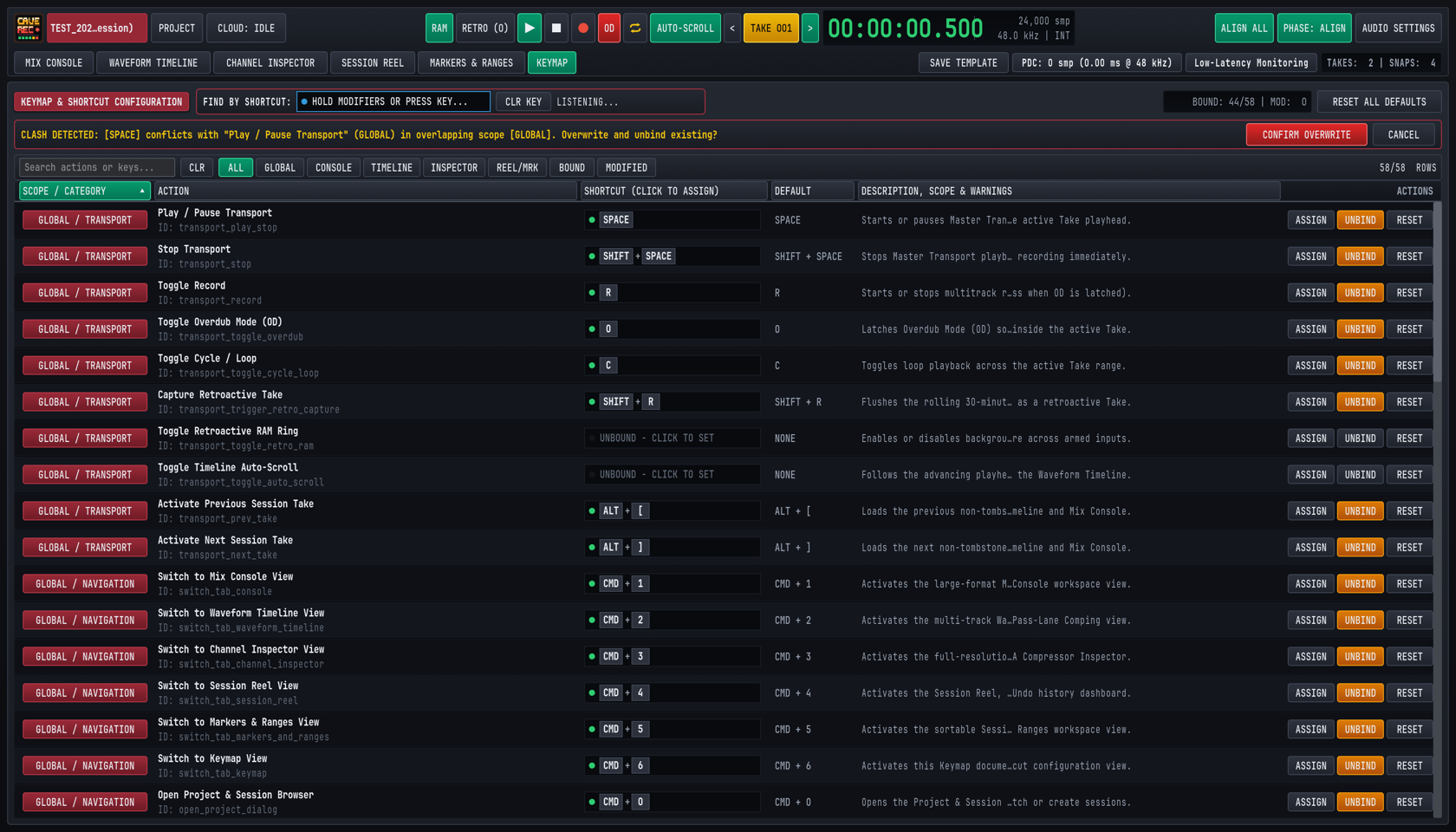
Pressing CMD + 6 on macOS (CTRL + 6 on Windows and Linux) or clicking KEYMAP in Row 2 of the Top Transport Deck opens the KEYMAP & SHORTCUT CONFIGURATION workspace.
8.3.1 Searching by Action Name, Reverse-Searching by Key Chord & Filtering by Scope#
The KEYMAP view provides three complementary ways to inspect bindings across all 58 studio actions:
- Text Search (
Search actions or keys...): Type any action name (Phase Align,Snapshot,Pass Lanes), action identifier (transport_record), scope name (MIX CONSOLE), or key chord (SHIFT + M,CMD + 1) into the left search box to filter the table in real time. ClickCLRto clear the text query. - Interactive Reverse-Search by Shortcut (
FIND BY SHORTCUT:): Click inside theCLICK & PRESS KEYS TO FIND...capture well in the top header bar. Its status indicator switches fromIDLEtoLISTENING...and the prompt changes toHOLD MODIFIERS OR PRESS KEY...:- Hold Modifier Keys (
MODS: [...]): Hold down any combination of modifiers (CMD/CTRL, OPT/ALT, SHIFT) without pressing a letter key to filter the table immediately to every action whose shortcut includes those held modifiers. - Press a Trigger Key (
EXACT: [...]): Press any non-modifier key (such as SPACE, R, or 1) to lock the complete key chord and isolate the exact action(s) bound to that shortcut across all scopes. - Clear Reverse Search (
CLR KEY): ClickCLR KEYbeside the capture box to clear the key filter and restore all 58 rows.
- Hold Modifier Keys (
- Scope & Status Quick-Filter Pills: Click any of the eight filter pills in the toolbar (
58/58 ROWS) to isolate a specific subset of actions:ALL: Displays all 58 bindable studio actions.GLOBAL: Displays the 33 global actions (GLOBAL / TRANSPORT,GLOBAL / NAVIGATION,GLOBAL / MARKERS, andGLOBAL / SESSION).CONSOLE: Displays the 7VIEW / MIX CONSOLEchannel strip actions.TIMELINE: Displays the 6VIEW / TIMELINEzoom and Pass Lane actions.INSPECTOR: Displays the 4VIEW / INSPECTORprocessor and clip-reset actions.REEL/MRK: Displays theVIEW / SESSION REEL,VIEW / MARKERS TAB, andMODAL / PROJECTactions.BOUND: Displays only actions that currently have an active keyboard shortcut assigned (44/58by factory default).MODIFIED: Displays only actions whose current shortcut differs from the factory default (marked with an amber*in theDEFAULTcolumn and counted in theMOD:telemetry badge at the top right).
8.3.2 Recording Custom Shortcuts, Unbinding & Resetting Defaults#
Every row in the KEYMAP table includes an interactive SHORTCUT (CLICK TO ASSIGN) capture well and row action buttons on the far right:
- Enter Capture Mode (
ASSIGNor Click Capture Well): Click theASSIGNbutton on the target row, or click directly inside itsSHORTCUT (CLICK TO ASSIGN)box (UNBOUND - CLICK TO SET). The row's capture well highlights and promptsPRESS KEYS, THEN APPLY, while the right-hand action column switches toAPPLY,CANCEL, andUNBIND. - Press Your Desired Key Combination: Hold any desired modifier keys (CMD/CTRL, OPT/ALT, SHIFT) and press a character key (
A..Z,0..9,[,],-,=,,,.), function key (F1..F12), or named navigation key (SPACE, ENTER, TAB, BACKSPACE, DELETE, HOME, END, PGUP, PGDN, UP, DOWN, LEFT, RIGHT). Shifted punctuation symbols (such as{or+) are automatically normalized to their canonical physical base key (SHIFT + [ or SHIFT + =) for consistent cross-platform matching. - Commit the Binding (
APPLY): ClickAPPLYto validate and save the captured key chord, or clickCANCEL(or click outside the capture well) to exit without changing the shortcut. - Unbind or Reset Individual Actions (
UNBIND/RESET): ClickUNBINDon any row to clear its shortcut toUNBOUND, or clickRESETto restore that single action to its factory default binding. - Restore Factory Defaults Across the Entire Studio (
RESET ALL DEFAULTS): ClickRESET ALL DEFAULTSat the top right of theKEYMAPheader to restore all 58 actions to their original factory keybindings in one step.
8.3.3 Live Scope Conflict Detection, Shared Non-Conflicting Scopes & OS Warnings#
When you assign a custom shortcut, Cave Recorder validates the key chord against two safety layers before writing to disk:
- Scope Clash Detection (
CLASH DETECTEDConfirmation Banner):- Overlapping Scopes (Blocked Without Confirmation): Because
GLOBALshortcuts are active across every workspace view, assigning the same key chord to twoGLOBALactions, to two actions in the same workspace view, or to aGLOBALaction and a workspace view action creates an ambiguous collision. When you clickAPPLYon a colliding chord, Cave Recorder pauses and displays the amber Clash Detection Banner at the top of theKEYMAPview (CLASH DETECTED: [SPACE] conflicts with "Play / Pause Transport" (GLOBAL) in overlapping scope [GLOBAL]. Overwrite and unbind existing?). ClickCONFIRM OVERWRITEto assign the shortcut and automatically unbind the conflicting action, or clickCANCELto keep your existing bindings untouched. - Non-Conflicting Sibling Views (Allowed & Highlighted in Green): Because only one workspace view tab is visible at a time, sibling view scopes (
MIX CONSOLE,WAVEFORM TIMELINE,CHANNEL INSPECTOR,SESSION REEL, andMARKERS & RANGES) never conflict with each other, andPROJECT MODALonly runs while the modal browser is open. When two actions in separate views share the same key (such as E bound toExpand All Track Pass LanesinWAVEFORM TIMELINEandToggle Pass Lanes on Inspected ChannelinCHANNEL INSPECTOR), theDESCRIPTION, SCOPE & WARNINGScolumn highlightsSHARED IN NON-CONFLICTING SCOPE: CHANNEL INSPECTORin emerald green.
- Overlapping Scopes (Blocked Without Confirmation): Because
- Operating System Shortcut Conflict Warnings (
OS WARN):- If you assign a key combination commonly intercepted by the host desktop environment, Cave Recorder displays an amber
OS WARN (<Platform>): <System Function>badge in the row description so you know the operating system may capture the key press first: - macOS Warnings: CMD + Q (Quit Application), CMD + H (Hide Window), CMD + M (Minimize Window), CMD + W (Close Window), CMD + SPACE (Spotlight Search), CMD + TAB (Application Switcher), CMD + SHIFT + 3/4/5 (System Screenshot), and CTRL + Arrow keys (Mission Control / Desktop Spaces).
- Windows & Linux Warnings: ALT + F4 (Close Window), ALT + TAB (Window Switcher), ALT + SPACE (Window Menu), CTRL + W / CTRL + Q (Close / Quit), CTRL + SHIFT + ESC (Task Manager), CTRL + ALT + T / DELETE (Terminal / Session Dialog), and SUPER (WIN) + L/D/E/R/I/TAB/SPACE/Arrow keys.
- If you assign a key combination commonly intercepted by the host desktop environment, Cave Recorder displays an amber
8.3.4 Persisting, Backing Up & Sharing Studio Keymap Profiles (keymap.json)#
Every change you make in the KEYMAP view is saved immediately to a human-readable JSON profile (keymap.json) inside your user configuration folder (stored alongside preferences.json and recent.json):
- macOS:
~/Library/Application Support/caverec/keymap.json - Linux:
$XDG_CONFIG_HOME/caverec/keymap.json(or~/.config/caverec/keymap.jsonwhenXDG_CONFIG_HOMEis unset) - Windows:
%APPDATA%\caverec\keymap.json(or%USERPROFILE%\AppData\Roaming\caverec\keymap.json)
{
  "schema_version": 1,
  "bindings": {
    "console_trigger_group_phase_align": {
      "modifiers": {
        "command": false,
        "control": false,
        "alt": false,
        "shift": true
      },
      "key": {
        "kind": "character",
        "value": "G"
      }
    }
  }
}
To transfer your custom studio keymap to a second rehearsal computer or back it up to version control:
- Copy
keymap.jsonfrom the source workstation's configuration directory into the target workstation'scaverecconfiguration directory while Cave Recorder is closed, and launchcaverec. - On startup, Cave Recorder automatically normalizes character symbols, maps
command: trueto CMD on macOS and CTRL on Windows and Linux, populates any omitted actions with their factory defaults, and sanitizes the table so no two overlapping scopes can ever load with a conflicting shortcut.
8.4 Command-Line & Automated Studio Verification Reference#
In addition to launching Cave Recorder from your desktop application menu, studio engineers and system integrators can run caverec from a terminal shell to execute automated 18-channel signal-path verification or generate offscreen workspace captures for studio documentation and rig sign-off.
# 1. Standard interactive desktop studio launch
caverec

# 2. Run the 18-channel studio self-test & signal-path verification
caverec --self-test
caverec --stress-test

# 3. Render all 15 workspace & modal inspection screenshots
caverec --screenshot-dir .tmp/caverec-shots

# 4. Render a single workspace preset at custom dimensions
caverec --screenshot-dir .tmp/caverec-shots \
  --screenshot-view console-18ch \
  --screenshot-size 1680x960
8.4.1 Command-Line Arguments Reference#
| Command-Line Flag | Arguments / Values | Studio Function |
|---|---|---|
| (No arguments) | None | Launches the interactive Cave Recorder desktop workstation (1680x960 default window), loads user keybindings (keymap.json) and studio preferences (preferences.json), and opens the PROJECT browser modal to select or create a Session. |
--self-test --stress-test |
None | Runs the automated 18-Channel Studio Self-Test & Hardware Verification Suite and exits with code 0 on pass or 1 on failure. Verifies 18-in/20-out routing (CH01..CH08 analog preamps, CH09..CH10 S/PDIF, CH11..CH18 ADAT optical), 48.0 kHz / 44.1 kHz sample-rate clock switching, multi-mic drum phase alignment, 30-minute retroactive memory capture, simultaneous 14-track playback + 4-track overdub pass recording, and offline mixdown and stem rendering. |
--screenshot-dir |
<dir> (Output directory path) |
Renders offscreen PNG captures of Cave Recorder's workspace views and detail regions into <dir> for studio documentation and visual rig inspection without opening an interactive desktop window. |
--screenshot-view |
<slug|all> (requires --screenshot-dir) |
Selects which workspace preset to render: all (default), console, console-18ch, console-routing, timeline, timeline-expanded, inspector-track, inspector-subgroup, session-reel, session-reel-modals, markers-ranges, keymap, device-settings, top-deck-popovers, or the PROJECT Session Browser modal presets (welcome and welcome-forms). |
--screenshot-size |
<WxH> (320x240 to 4096x4096, default 1680x960) |
Sets the logical viewport resolution used when rendering offscreen workspace captures with --screenshot-dir. Both space-separated (--screenshot-size 1920x1080) and =-separated (--screenshot-size=1920x1080) syntax are supported. |
8.4.2 Studio Environment Variables#
Cave Recorder also recognizes the following optional environment variables on startup:
| Environment Variable | Platform / Scope | Studio Function |
|---|---|---|
CLAP_PATH |
macOS, Windows, Linux | Colon-separated (macOS/Linux) or semicolon-separated (Windows) list of additional directories to scan on startup for third-party .clap audio plugins alongside the standard system plugin folders (Section 5.7.1). |
CAVEREC_GPU_POWER |
Linux (low, igpu, low_power, low-power or high, dgpu, high_performance, high-performance) |
Selects the graphics adapter power preference on multi-GPU Linux studio workstations. Low-power values (low, igpu, low_power, low-power, the default) select integrated low-noise graphics so cooling fans never bleed into live room microphones, while high-performance values (high, dgpu, high_performance, high-performance) select a discrete GPU. |
CAVEREC_GDRIVE_CLIENT_ID |
macOS, Windows, Linux | Optional Google OAuth 2.0 Desktop Client ID used by Check / Connect Drive for the loopback (127.0.0.1) OAuth 2.0 + PKCE browser sign-in flow when gdrive_oauth_client.json is not present in the user configuration directory (Section 7.5.1). |
CAVEREC_GDRIVE_CLIENT_SECRET |
macOS, Windows, Linux | Optional Google OAuth 2.0 Client Secret paired with CAVEREC_GDRIVE_CLIENT_ID when required by a custom Desktop OAuth client credential. |
CAVEREC_GDRIVE_ACCESS_TOKEN |
macOS, Windows, Linux | Optional OAuth 2.0 access token override for unattended Google Drive cloud synchronization in automated studio backup scripts when interactive browser sign-in is not available. |