Typical Studio & Rehearsal Workflows
Step-by-step guides for band rehearsal capture, 30-minute retroactive memory rescue, multi-mic drum phase alignment, overdub comping, and band mix sharing.
This chapter walks through five end-to-end studio workflows that cover the day-to-day operation of Cave Recorder: capturing a full-band rehearsal with instant stereo reference mixes, rescuing an unrecorded jam from the 30-minute retroactive memory, phase-aligning a multi-microphone drum kit and guitar rig, tracking and comping layered overdubs in Pass Lanes, and mixing with non-destructive Snapshots and Google Drive synchronization.
3.1 Workflow 1: Full-Band Rehearsal Capture & Instant Reference Prints#
Studio Scenario: A four- or five-piece band gathers for a two-hour evening rehearsal. You want to record every song run-through across 12 to 18 channels without slowing down the room, mark strong sections on the fly, and hand every band member compact 24-bit .flac and 320 kbps .mp3 stereo mixes before they finish packing up their gear.
3.1.1 Rehearsal Capture Procedure#
- Launch the Session from Your Rehearsal Template:
- Press CMD + O (macOS) or CTRL + O (Windows/Linux) to open the
PROJECTmodal. - Select your band's Project pill, click
Template: 18ch Live Band(or your custom room template), type a Session Name (Tuesday Night Rehearsal) and Session Tag (Rehearsal), and clickNew Session.
- Press CMD + O (macOS) or CTRL + O (Windows/Linux) to open the
- Arm All Active Input Channels:
- Press CMD + 1 (macOS) or CTRL + 1 (Windows/Linux) to view
MIX CONSOLE. - Confirm that
CH01throughCH18(or all active mic and DI channels) have their red Record Arm (R) buttons engaged (clickRon each strip, or select a strip and press SHIFT + A). - Verify that Overdub Mode (
OD) in the Top Transport Deck is off (unlit) so each recording starts a fresht = 0Take.
- Press CMD + 1 (macOS) or CTRL + 1 (Windows/Linux) to view
- Dial a Quick Monitor and Live Print Balance:
- While the band warms up, verify input levels average around
-18 dBFSRMS with peaks around-6 dBFS. - Set channel faders and stereo pans (
OverheadL/OverheadR,GuitarL/GuitarR,KeysL/KeysR), blend inAUX 1 REVERB(RVB) on snare and vocals, and engageTAPEsaturation, the brickwallLIM(CEIL -0.3dB), and the2-TRKlive Print button on theMST MASTER BUSstrip. Because the live stereo Print records directly from the Master Bus output whenever2-TRKis armed, this monitor balance becomes your immediate reference mix.
- While the band warms up, verify input levels average around
- Start Recording Song 1 (
Take 001):- Just before the drummer counts in, press R (or click Record
●in the Top Deck). - Cave Recorder creates
Take 001at00:00:00.000and simultaneously writes raw 32-bit float pre-fader stems (Rec001) intoTake001/rec/and the live stereo Master Bus mix (Print001.wav) intoTake001/mix/.
- Just before the drummer counts in, press R (or click Record
- Drop Cue Markers on the Fly (M):
- Whenever a chorus groove locks in, a bridge arrangement changes, or a solo stands out during the performance, press M on the keyboard.
- Cave Recorder drops a timestamped standalone marker (
M005,M006, ...) at the exact live playhead sample without interrupting recording.
- Stop at the End of the Song (SPACE):
- When the final chord rings out, press SPACE (or SHIFT + SPACE).
- Cave Recorder closes all open audio files for
Take 001and automatically captures a post-recording console Snapshot (Auto-Save (Post-Recording)).
- Capture Subsequent Songs as Independent Takes (
Take 002,Take 003, ...):- When the band counts in the next run-through or the next song, simply press R again.
- Cave Recorder automatically increments to
Take 002with a brand-new00:00:00.000timeline origin. Repeat R, play the song, and press SPACE for every song of the night.
- Tag Keeper Takes and Convert Live Prints to
.flacand.mp3(FLAC PRINT/MP3 PRINT/FLAC ALL PRINTS/MP3 ALL PRINTS):- At the end of rehearsal, press CMD + 4 (macOS) or CTRL + 4 (Windows/Linux) to open the
SESSION REEL. - In the TAKES CATALOG, click
EDIT TAKE 001to assign a descriptive song tag (such asNewSong_Run1orChorusKeeper). - Click
FLAC PRINT 001orMP3 PRINT 001on individual Takes, or clickFLAC ALL PRINTSandMP3 ALL PRINTSin the Session Reel header bar to batch-encode every live stereo.wavPrint to 24-bit lossless.flacand 320 kbps CBR.mp3(with a Xing/Info seek header) and link both into<ProjectTag>/_Mixes/. (If you adjusted faders after recording and want an updated offline render instead of the live Print, toggleFLACand/orMP3on theMST MASTER BUSstrip and clickBOUNCEto render an offlineMix001.<flac|mp3>Mixdown).
- At the end of rehearsal, press CMD + 4 (macOS) or CTRL + 4 (Windows/Linux) to open the
- Sync Reference Mixes to Bandmates' Phones and Browsers:
- Click
UPLOAD SES MIXESin the Session Reel header (or open the Top DeckCLOUDpopover and clickSYNC SESSION MIXES). - Cave Recorder uploads the compact
.flacand.mp3reference mixes to Google Drive in seconds so every band member can stream.mp3mixes directly inside the Google Drive web browser preview player or download lossless.flacmasters on the drive home.
- Click
3.2 Workflow 2: Rescuing an Unrecorded Jam with 30-Minute Retroactive Capture (RETRO)#
Studio Scenario: Between rehearsed songs, the transport is stopped while the guitarist tunes. The drummer and bassist start an improvised groove, the rest of the band joins in, and eight minutes later they finish the best song idea of the night. Nobody pressed Record.
Because Cave Recorder continuously maintains a rolling 30-minute retroactive capture memory across all armed inputs whenever RAM is active, the entire multi-channel performance is still in system memory waiting to be saved.
3.2.1 Retroactive Rescue Procedure#
- Keep
RAMActive and Channels Armed During Rehearsal:- At the start of your session, verify that the
RAMbutton in the Top Transport Deck is illuminated green and all live studio channels (CH01..CH18) have their redR(Record Arm) buttons engaged. - Even while the transport is stopped (
■), Cave Recorder continuously retains the most recent 30 minutes of incoming 32-bit float audio from every armed channel in memory.
- At the start of your session, verify that the
- Trigger Retroactive Capture (
RETRO):- As soon as the unrecorded jam finishes (or even while the band is still playing), click the
RETRO (0)button in the Top Transport Deck, or press SHIFT + R.
- As soon as the unrecorded jam finishes (or even while the band is still playing), click the
- Verify the Rescued Take:
- Cave Recorder immediately flushes the rolling multi-channel capture memory to disk as a new numbered Take (
Take<NNN>), increments the Top Deck counter badge toRETRO (1), builds the multi-tier waveform overview, and switches the active console and timeline to the rescued Take.
- Cave Recorder immediately flushes the rolling multi-channel capture memory to disk as a new numbered Take (
- Trim Pre-Jam Room Chatter into a Clean Song Take (
SPLIT TAKE):- Press CMD + 2 (macOS) or CTRL + 2 (Windows/Linux) to switch to
WAVEFORM TIMELINE. - Scrub or zoom (
ZOOM IN (+)or =, or vertical/horizontal drag on the timeline ruler) to find the exact moment the drummer counted in the jam, and click to place the playhead just before the first beat. - Click
SPLIT TAKEin the Waveform Timeline toolbar (or press M to drop a marker, openMARKERS & RANGESwith CMD + 5 / CTRL + 5, and clickNEW TAKE -> ENDon that marker row). - Cave Recorder extracts the jam from that marker forward into its own clean
00:00:00.000Take and lets you move the earlier tuning Take to the session trash viaTOMB TAKE 001(or permanently remove an unwanted retroactive Take viaPURGE RETRO 001) inSESSION REEL(CMD + 4 / CTRL + 4).
- Press CMD + 2 (macOS) or CTRL + 2 (Windows/Linux) to switch to
3.3 Workflow 3: Multi-Mic Drum & Guitar Cab Phase Alignment (ALIGN ALL & Φ)#
Studio Scenario: You are tracking a full band across 18 channels (CH01 01KickIn, CH02 02SnrTp, CH03 03OvrhdL, CH04 04GtrAmp, CH05 TomRack, CH06 TomFloor, CH07 OverheadL, CH08 OverheadR, CH09 SpdifSynthL, CH10 SpdifSynthR, CH11 BassDi, CH12 BassAmp, CH13 GuitarL, CH14 GuitarR, through CH18 RoomAmbience). Because acoustic wavefronts from the kick and snare travel several feet through the air before reaching the overhead and room microphones, and because a bass amp microphone lags behind a direct Bass DI box, summing the raw channels causes phase cancellation that thins out low-end punch and smears transient focus.
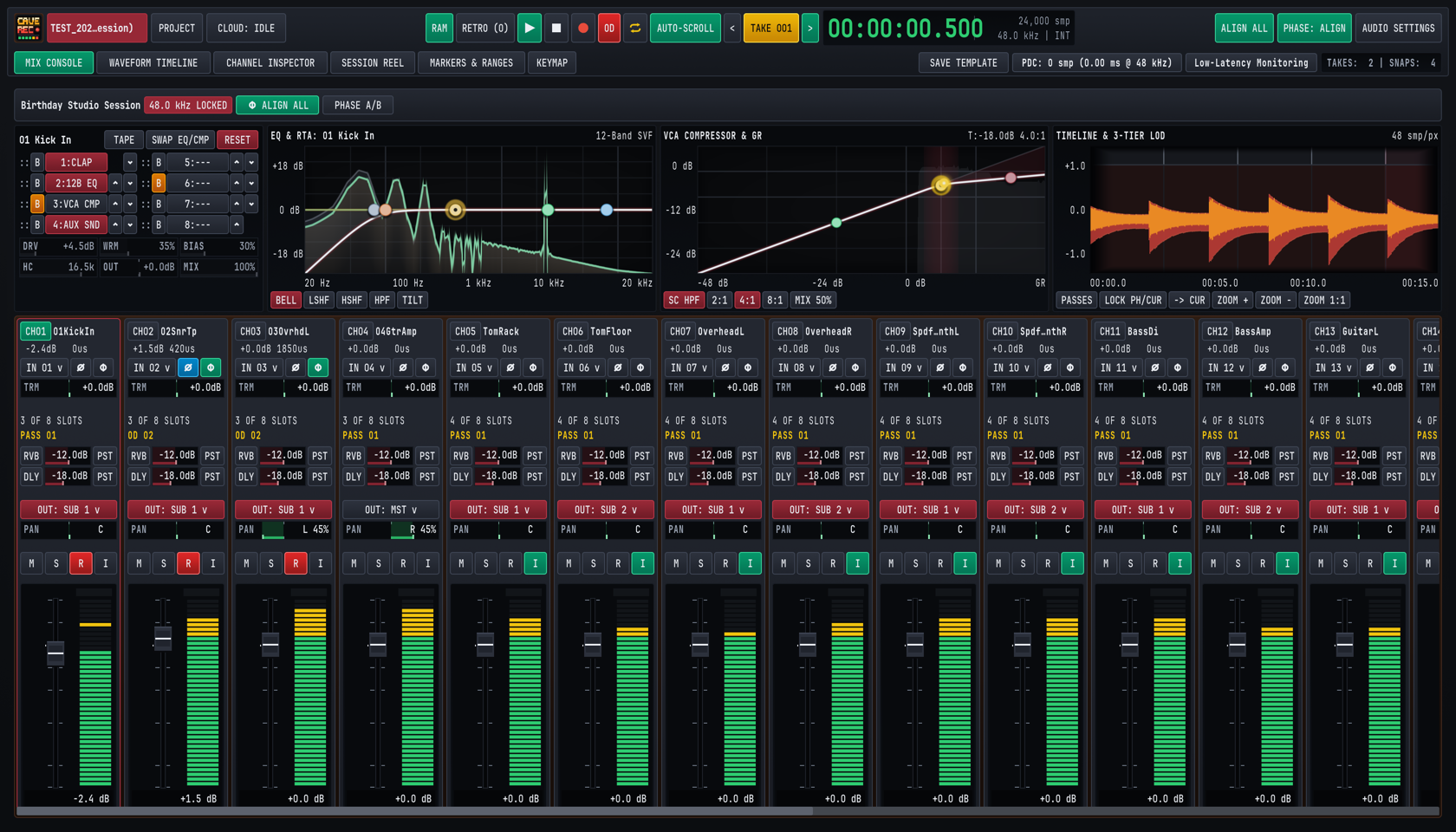
3.3.1 Multi-Mic Phase Alignment Procedure#
- Record a 10-to-15 Second Full-Kit & Band Reference Pass:
- Arm all drum and multi-miked instrument channels (
R) inMIX CONSOLE(CMD + 1 / CTRL + 1). - Press R and have the drummer play a 10-to-15 second groove that hits the kick, snare, toms, hi-hat, and cymbals clearly while the bassist and guitarist play locked eighth notes.
- Press SPACE to stop recording.
- Arm all drum and multi-miked instrument channels (
- Verify the Timing Reference Channel (
0us):- Look at the phase delay readout directly beneath each channel strip's top identifier badge (
CH01 01KickInshows-2.4dB 0us). - By default,
CH01(01KickInor Overhead L) serves as the0usacoustic timing anchor against which correlated channels are measured.
- Look at the phase delay readout directly beneath each channel strip's top identifier badge (
- Run Automatic Multi-Mic Phase Alignment (
ALIGN ALL):- Click the green
ALIGN ALLbutton in the Top Transport Deck (orΦ ALIGN ALLin the session toolbar bar). - To align only a single channel strip (such as aligning
CH12 BassAmptoCH11 BassDi), select that strip and click its individualΦbutton. BothTrigger Global Multi-Mic Phase AlignandTrigger Phase Align on Inspected Trackcan also be bound to custom keyboard shortcuts inKEYMAP(CMD + 6 / CTRL + 6). - To manually flip 180-degree polarity (
Ø) on the currently inspected channel strip at any time, clickØor press SHIFT + P while inMIX CONSOLE.
- Click the green
- Inspect Sub-Sample Delay (
us) and Polarity (Ø) Corrections:- Cave Recorder cross-correlates the recorded multi-channel waveforms and engages the green
Φphase button and blueØpolarity button where needed: - On
CH02 02SnrTp, notice the readout updates to+1.5dB 420uswith both polarity inversion (Øblue) and phase delay (Φgreen) engaged to lock the snare transient in phase with the kick and overheads. - On
CH03 03OvrhdL, notice the readout updates to+0.0dB 1850uswithΦengaged to compensate for the acoustic propagation distance between the close mics and overheads.
- Cave Recorder cross-correlates the recorded multi-channel waveforms and engages the green
- A/B Audition the Phase Alignment (
PHASE: ALIGNvs.PHASE: BYP):- Press SPACE to play back the drum recording through your studio monitors.
- Click
PHASE: ALIGNin the Top Deck (orPHASE A/Bin the session sub-header) to toggle betweenPHASE: ALIGN(active) andPHASE: BYP(bypassed). - Listen to the low-frequency weight of the kick drum, the body of the snare, and the phantom center image of the kit snap into focus when
PHASE: ALIGNis engaged. All subsequent Takes in the Session inherit these aligned delay and polarity settings automatically.
3.4 Workflow 4: Layered Guitar & Vocal Overdubs with Pass Lane Comping (OD)#
Studio Scenario: The band has tracked a solid rhythm section performance in Take 001. Now the guitarist or lead vocalist wants to loop the chorus section, record three alternate solo or vocal passes (Rec002-OD, Rec003-OD, Rec004-OD) inside Take 001, and select the best performance using Pass Lanes.
3.4.1 Overdub Tracking & Pass Lane Comping Procedure#
- Select the Target Take (
TAKE 001):- Use
< TAKE 001 >in the Top Deck (ALT + [ / ALT + ]) or clickLOAD TAKE 001inSESSION REEL(CMD + 4 / CTRL + 4) so the rhythm Take is loaded at00:00:00.000.
- Use
- Disarm Rhythm Tracks and Arm Only the Overdub Channel:
- In
MIX CONSOLE(CMD + 1 / CTRL + 1), click the redRbuttons on the drum and bass strips (CH01..CH03,CH05..CH12) to disarm them so they play back theirPASS 01(Rec001) stems from disk. - On the target overdub channel (for example,
CH04 04GtrAmporCH17 LeadVocal), engage bothR(Record Arm, or press SHIFT + A while the strip is selected inMIX CONSOLE) andI(Input Monitor, or press SHIFT + I) so the performer hears their live input blended with playback.
- In
- Latch Overdub Mode (
OD) and Low-Latency Monitoring:- Click
ODin the Top Transport Deck (or press O) so theODbutton illuminates bright red. - Click
Low-Latency Monitoringin Row 2 of the Top Deck so any high-latency plugins on non-armed buses are bypassed in the live monitoring path.
- Click
- Define the Section Loop Range (
K,L&⇄):- Press CMD + 2 (macOS) or CTRL + 2 (Windows/Linux) to open
WAVEFORM TIMELINE. - Place the playhead two bars before the solo or chorus entrance and press K (or click
RANGE START (K)). - Place the playhead a bar after the section ends and press L (or click
RANGE END (L)). - Press C (or click Cycle/Loop
⇄in the Top Deck) to enable loop playback across the range.
- Press CMD + 2 (macOS) or CTRL + 2 (Windows/Linux) to open
- Record Multiple Overdub Passes (
OD 02,OD 03,OD 04):- Press R to start overdub recording inside
Take 001. While the rhythm tracks play back, Cave Recorder captures the new performance ontoCH04asRec002-OD(displayed asOD 02) and automatically applies your calibrated roundtrip loopback offset (-640 smp (-13.3ms)). - Press SPACE at the end of the pass, return to the start of the range, and press R again to capture
OD 03(Rec003-OD) andOD 04(Rec004-OD).
- Press R to start overdub recording inside
- Expand Pass Lanes in the Waveform Timeline (E):
- In
WAVEFORM TIMELINE(CMD + 2 / CTRL + 2), press E (or clickEXPAND ALL PASSESin the timeline toolbar, or click the red pass-count pillv (2)on an individual track header) to expand the track's Pass Lanes. Press SHIFT + E (or clickCOLLAPSE ALL PASSES) at any time to fold them back into a single compact track row. - The top slice of the expanded track displays
PASS 01(BASE PASS), followed by stacked slices for each recorded Overdub Pass (OD 02,OD 03,OD 04, each badgedOVERDUBwith its sample spanSpan: 0..48000 smpand net record-offset-640 smp (-13.3ms)). Notice that the Mix Console channel strip badge also updates to showOD 02in amber when an Overdub Pass is active.
- In
- Audition and Select Active Pass Lanes (
Use PASS 01/★ OD 02):- The currently selected pass on a track is badged
ACTIVE COMP LANEand displays a green star button (★ PASS 01or★ OD 02), while every other pass is badgedSTANDBY COMP LANEwith a clickableUse PASS 01orUse OD 02button. - While looping playback (SPACE), click
Use PASS 01,Use OD 02, orUse OD 03on any Pass Lane row to promote that pass immediately as the active playback lane for the track. - To silence a pass temporarily without changing selection, click
M(Mute) on that Pass Lane row, or clickDelto remove a flawed pass from the Take.
- The currently selected pass on a track is badged
3.5 Workflow 5: Mixing, Non-Destructive Snapshots & Band Cloud Sharing#
Studio Scenario: Tracking and overdub selection are complete. Now you want to shape a polished mix using Subgroup Buses and Aux Sends, save several mix variations as Snapshots, compare a vocal-up mix against an earlier Snapshot using Present Stash, render an offline Mixdown and Stem Bounces, and synchronize the project to Google Drive.
3.5.1 Bus Mixing, Snapshot A/B & Cloud Sync Procedure#
- Organize Channels into Subgroup Buses (
DRUM BUS&INST BUS):- In
MIX CONSOLE(CMD + 1 / CTRL + 1), click the output routing selector (OUT: SUB 1 v) on all drum channels (CH01..CH08,CH18) to route them toSUB 1(DRUM BUS). - Route synths, bass, guitars, and keys (
CH09..CH16) toOUT: SUB 2 v(INST BUS), and route lead vocals (CH17) directly toOUT: MST v(MASTER BUS).
- In
- Apply Bus Processing and Spatial Aux Sends (
RVB&DLY):- Click
SELon theDRUM BUSstrip to load its 8-slot processor rack into the Upper Inspector Wells. - In the 12-Band Parametric EQ well (
2:12B EQ), sculpt a low-shelf boost around60 Hzand a gentle presence lift at4.5 kHzwhile watching the pre/post Dual-Trace RTA spectrum. - In the VCA Compressor well (
3:VCA CMP), select a4:1ratio, engage the sidechain high-pass filter (SC HPF), and setMIX 50%for punchy New York-style parallel drum compression. - Use each channel's
RVBandDLYsend sliders (togglingPSTfor post-fader send operation) to feedAUX 1 REVERB(EMT 140 Platezero-latency convolution reverb) andAUX 2 TAPE DLY(CAPSTAN TAPEecho withWOW 18%,DMP 4.2k, andPPping-pong stereo widening).
- Click
- Save Named Mix Variations as Manual Snapshots (
SNAP MANUAL):- Press CMD + S on macOS (CTRL + S on Windows and Linux) from any workspace view, or press CMD + 4 / CTRL + 4 to open
SESSION REELand clickSNAP MANUALin theHISTORYtoolbar, to capture your baseline mix asSnap 004 [MANUAL]. - Return to
MIX CONSOLE(CMD + 1 / CTRL + 1) and try a more aggressive mix variation (for example, pushingDRIVE +4.5dBon the Master Tape saturator and riding the lead guitar +2.0 dB).
- Press CMD + S on macOS (CTRL + S on Windows and Linux) from any workspace view, or press CMD + 4 / CTRL + 4 to open
- A/B Compare Historical Snapshots with Present Stash (
A/B PRESENT STASH):- In
SESSION REEL(CMD + 4 / CTRL + 4), scroll to the SNAPSHOTS & PRESENT STASH table and clickAUDITION SNAP 001(orAUDITION SNAP 004). - Cave Recorder automatically backs up your live, unsaved console adjustments into the Present Stash and displays the
AUDITION MODE: SNAP 001control bar. - While playback is rolling, click
A/B PRESENT STASHrepeatedly to toggle instantaneously between the historical Snapshot and your live working mix with zero audio dropouts. - Click
RETURN TO PRESENT(or press BACKSPACE) to restore your live working mix, or clickCOMMIT SNAPSHOTif you prefer the historical Snapshot and want to adopt it as the new working session state.
- In
- Render Offline Mixdowns and Stem Bounces:
- When your mix is finished, select
FLAC(24-bit lossless),MP3(320 kbps CBR), or both on theMST MASTER BUSstrip inMIX CONSOLE(CMD + 1 / CTRL + 1) and clickBOUNCEto render an offline stereo Mixdown (Mix001.flac/Mix001.mp3) linked directly into<ProjectTag>/_Mixes/, or trigger offline per-track Stem Bounces (Bounce001.wav) for archival delivery.
- When your mix is finished, select
- Synchronize to Google Drive (
UPLOAD SES MIXES/UPLOAD SES FULL):- Click
UPLOAD SES MIXESinSESSION REEL(CMD + 4 / CTRL + 4) to push all stereo.flacand.mp3Prints and Mixdowns to Google Drive for rapid band review. - Click
UPLOAD SES FULLto synchronize the entire session folder (including 32-bit floatrec/stems,snapshots/, and session history) so remote bandmates who have linked the project can open the full multitrack session on their own studio workstations.
- Click