Hardware Setup, Audio Connections & First Session
Connecting multi-channel USB and ADAT interfaces, locking digital clocks, calibrating roundtrip loopback latency, and creating your first Project and Session.
2.1 Connecting Multi-Channel Audio Interfaces (USB, Thunderbolt & ADAT)#
Cave Recorder supports up to 18 simultaneous input channels (CH01 through CH18), making it an ideal match for rackmount 18-in / 20-out USB or Thunderbolt studio interfaces such as the Behringer UMC1820 + ADA8200, Focusrite Scarlett/Clarett 18i20 + OctoPre, RME Fireface UFX/UCX II + OctaMic, Audient iD44/EVO 16 + SP8, or Universal Audio Apollo x8p.
A standard 18-channel rehearsal and tracking rig combines three physical input groups into a single unified audio device:
- Inputs 1-8 (Primary Interface Onboard Mic/Line Preamps): Eight XLR/TRS combo preamps on the main rack unit, typically dedicated to close drum microphones, guitar cabinet mics, rack and floor toms, and stereo drum overheads.
- Inputs 9-10 (Coaxial S/PDIF or Auxiliary Line Return): Two digital coaxial S/PDIF channels or line inputs used for stereo hardware synthesizers, stage pianos, or drum machines (
SpdifSynthLandSpdifSynthR). - Inputs 11-18 (8-Channel ADAT Optical Preamp Expander): Eight additional microphone and instrument preamps fed from an external 8-channel ADAT expander into the primary interface's
ADAT OPTICAL INport over a TOSLINK fiber-optic cable, dedicated toBassDi,BassAmp,GuitarL,GuitarR,KeysL,KeysR,LeadVocal, andRoomAmbience.
2.1.1 Studio Signal & Clock Wiring Diagram#
The diagram below illustrates the physical audio, optical ADAT, Word Clock, studio monitor, and loopback calibration connections for an 18-channel tracking room:
STAGE / LIVE ROOM MICROPHONES & DI BOXES
======================================================================
[CH 01..08: Drum Kit & Cab Mics]   [CH 11..18: Band & Room Mics]
Kick, Snare, Toms, Overheads       Bass DI/Amp, Guitars, Keys, Vocal
             |                                      |
     8x XLR Mic Cables                      8x XLR/TRS Cables
             v                                      v
+-------------------------------+  +---------------------------------+
| PRIMARY 18-IN / 20-OUT AUDIO  |  | EXTERNAL 8-CH ADAT MIC PREAMP   |
| INTERFACE (UMC1820 / 18i20)   |  | (ADA8200 / OctoPre / SP8)       |
|                               |  |                                 |
| Analog In 1-8    [CH01..CH08] |  | Analog Mic Pre 1-8              |
| S/PDIF Coax In   [CH09..CH10]<+-\|                                 |
| ADAT Optical In  [CH11..CH18]<+--+-- ADAT Optical Out (TOSLINK)    |
|                               | ||                                 |
| Clock: INTERNAL (48.0 kHz)    | || Clock Sync: SLAVE (Word Clock   |
| Word Clock Out (75-Ohm BNC) --+-++-> Word Clock In (75-Ohm BNC)    |
|                               | |+---------------------------------+
| Main Out 1-2  -> Monitors     | |
| Line Out 3-10 -> Headphones   | \-- [CH 09..10: Stereo Synth S/PDIF]
| Line Out 20   -> Patch In 1   |     (Coaxial 75-Ohm RCA Cable)
|                  (Loopback)   |
+-------------------------------+
             |
      USB-C / Thunderbolt
             v
+-------------------------------+
| WORKSTATION RUNNING CAVEREC   |
| Audio Device: 18 in / 20 out  |
| Sample Rate:  48.0 kHz | INT  |
+-------------------------------+
2.1.2 Recommended 18-Channel Full-Band Patch List#
Connecting instruments in a consistent console order allows you to reuse your saved Cave Recorder Session Templates (SAVE TEMPLATE) across every rehearsal without re-patching:
| Input & Strip | Typical Studio Source & Microphone | +48V Phantom |
Subgroup Bus | Gain-Staging Target |
|---|---|---|---|---|
IN 01 (CH01 01KickIn) |
Kick Drum Inside (Dynamic or boundary mic) | Off (On for boundary) | SUB 1 (DRUM BUS) |
Peaks at -6 dBFS on hard hits |
IN 02 (CH02 02SnrTp) |
Snare Drum Top (Dynamic cardioid, align Φ + Ø) |
Off | SUB 1 (DRUM BUS) |
Peaks at -6 dBFS on rimshots |
IN 03 (CH03 03OvrhdL) |
Mono Drum Overhead or Snare Bottom (align Φ) |
On / Off | SUB 1 (DRUM BUS) |
Peaks at -8 dBFS |
IN 04 (CH04 04GtrAmp) |
Close Guitar Cabinet Mic or Hi-Hat Condenser | Off / On | MST (MASTER BUS) |
Average -18 dBFS RMS |
IN 05 (CH05 TomRack) |
Rack Tom Clip-On Dynamic | Off | SUB 1 (DRUM BUS) |
Peaks at -6 dBFS on fills |
IN 06 (CH06 TomFloor) |
Floor Tom Dynamic | Off | SUB 2 / SUB 1 |
Peaks at -6 dBFS on fills |
IN 07 (CH07 OverheadL) |
Drum Overhead Left (Matched condenser pair) | On | SUB 1 (DRUM BUS) |
Peaks at -8 dBFS on crashes |
IN 08 (CH08 OverheadR) |
Drum Overhead Right (Matched condenser pair) | On | SUB 2 / SUB 1 |
Peaks at -8 dBFS on crashes |
IN 09 (CH09 SpdifSynthL) |
Stereo Digital Synth Left (Coaxial S/PDIF L) | Off | SUB 1 / SUB 2 |
Average -18 dBFS RMS |
IN 10 (CH10 SpdifSynthR) |
Stereo Digital Synth Right (Coaxial S/PDIF R) | Off | SUB 2 (INST BUS) |
Average -18 dBFS RMS |
IN 11 (CH11 BassDi) |
Bass Guitar Active/Passive DI Box (Line/Inst) | On (Active DI) | SUB 1 / SUB 2 |
Average -18 dBFS, peaks -8 dBFS |
IN 12 (CH12 BassAmp) |
Bass Cabinet Dynamic or FET Condenser (align Φ to CH11) |
Off / On | SUB 2 (INST BUS) |
Average -18 dBFS, peaks -8 dBFS |
IN 13 (CH13 GuitarL) |
Rhythm Guitar Amp Close Dynamic (SM57 / Ribbon) |
Off | SUB 1 / SUB 2 |
Average -18 dBFS RMS |
IN 14 (CH14 GuitarR) |
Lead Guitar Amp Close Dynamic or Second Cab Mic | Off | SUB 2 (INST BUS) |
Average -18 dBFS RMS |
IN 15 (CH15 KeysL) |
Stage Piano / Keyboard Stereo DI Left | Off | SUB 2 (INST BUS) |
Average -18 dBFS RMS |
IN 16 (CH16 KeysR) |
Stage Piano / Keyboard Stereo DI Right | Off | SUB 2 (INST BUS) |
Average -18 dBFS RMS |
IN 17 (CH17 LeadVocal) |
Lead Vocal Dynamic or Large-Diaphragm Condenser | Off / On | MST (MASTER BUS) |
Peaks at -6 dBFS on loud chorus |
IN 18 (CH18 RoomAmbience) |
Live Room Condenser or Ribbon (Never +48V on passive ribbon) |
On / Off | SUB 1 (DRUM BUS) |
Average -20 dBFS RMS |
2.1.3 Digital Clock Synchronization (INT vs. External ADAT / Word Clock)#
Whenever two or more digital audio devices convert audio simultaneously (such as a primary USB interface and an external 8-channel ADAT optical preamp), every converter in the chain must lock to a single master sample clock. If both units run on their own internal crystal oscillators, slight clock drift causes periodic clicks, pops, and high-frequency distortion across the expanded channels.
Follow one of these two studio clocking topologies:
- Topology A: Primary Interface as Master (
INT), Expander Slaved via Word Clock or Bidirectional ADAT (Recommended):- Set your primary audio interface clock source to Internal (
INT) at48.0 kHz(displayed in the Cave Recorder Top Deck as48.0 kHz | INTand in the console session bar as48.0 kHz LOCKED). - Run a 75-ohm BNC Word Clock cable from the primary interface
WORD CLOCK OUTto the ADAT expanderWORD CLOCK IN(switching the expander's rear clock selector toWC INwith 75-ohm termination active), or run a second TOSLINK cable from the primary interfaceADAT OUTto the expanderADAT INand set the expander clock selector toADAT IN.
- Set your primary audio interface clock source to Internal (
- Topology B: ADAT Expander as Master, Primary Interface Slaved to
ADAT:- If your external 8-channel preamp has only an
ADAT OUTport and noWORD CLOCK INorADAT INport, set the external preamp toINTERNAL 48 kHzand set your primary audio interface clock source to External ADAT in its hardware control panel.
- If your external 8-channel preamp has only an
2.1.4 First-Launch Setup on macOS (Gatekeeper & Quarantine Clearance)#
The v0.1.0 macOS release of Cave Recorder (Cave_Recorder_0.1.0_macOS_Universal.dmg / Cave Recorder.app) is distributed as an unsigned application bundle. When opening an unsigned application downloaded from a web browser on macOS for the first time, macOS Gatekeeper places a quarantine flag on the bundle and displays an unverified developer prompt.
After dragging Cave Recorder.app into /Applications, clear the macOS Gatekeeper quarantine flag using either of these two methods before your first studio session:
- Method A: macOS System Settings (
Open Anyway):- Double-click
Cave Recorder.appin/Applicationsand click Done (or Cancel) on the initial Gatekeeper prompt. - Open System Settings -> Privacy & Security, scroll down to the Security section, and click Open Anyway next to
"Cave Recorder.app" was blocked from use because it is not from an identified developer. - Authenticate with Touch ID or your macOS administrator password and confirm Open.
- Double-click
- Method B: Terminal Quarantine Removal (
xattr -cr):- Open the macOS Terminal application and run
xattr -cr "/Applications/Cave Recorder.app". - Launch
Cave Recorder.appnormally from/Applicationsor Spotlight, and click Allow when macOS prompts for microphone and audio interface access.
- Open the macOS Terminal application and run
2.2 Configuring Audio Device Settings (AUDIO SETTINGS)#
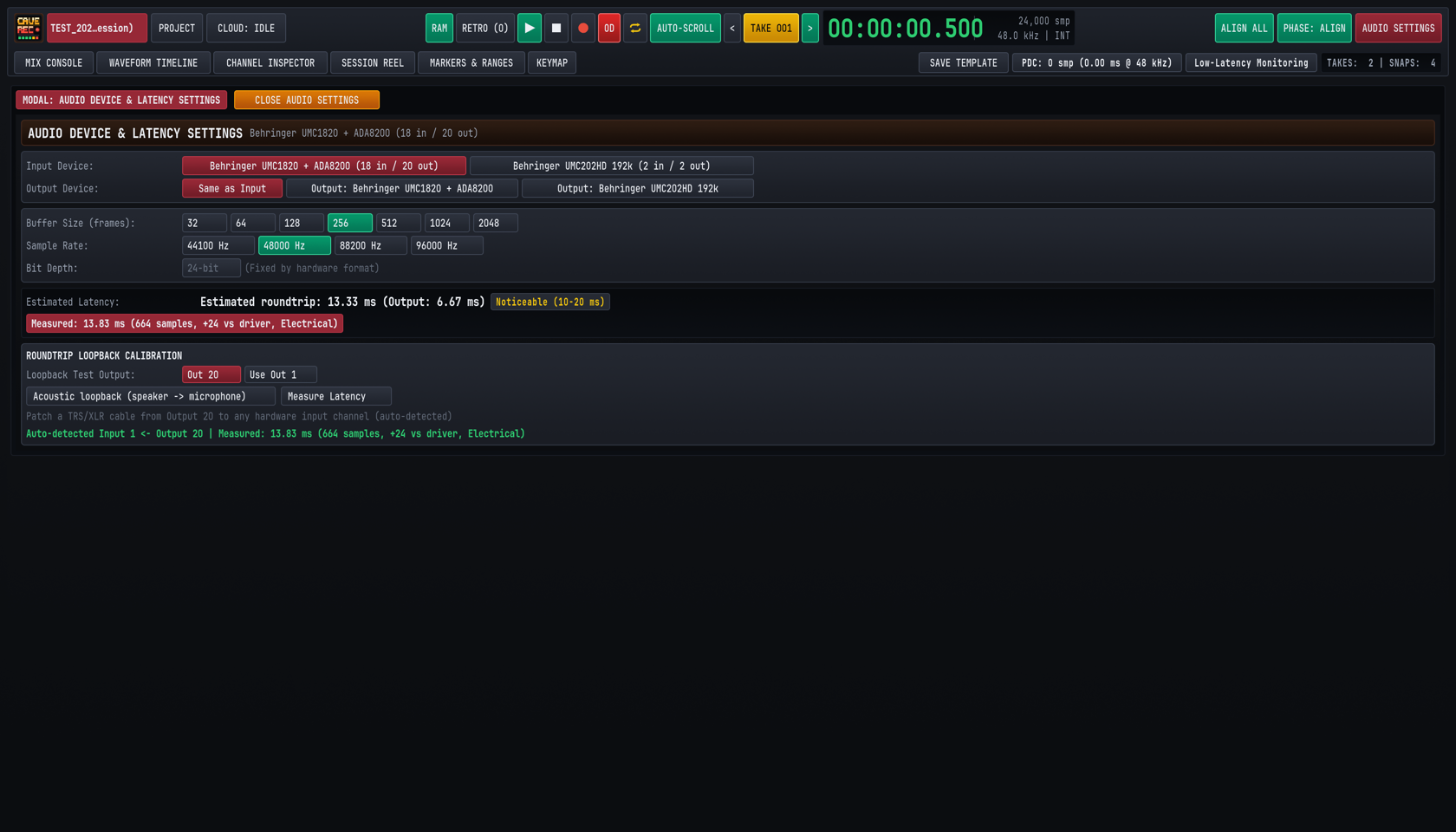
Click the AUDIO SETTINGS button at the top right of the Top Transport Deck (or press CMD + , on macOS / CTRL + , on Windows and Linux) to open the Audio Device & Latency Settings modal (MODAL: AUDIO DEVICE & LATENCY SETTINGS).
2.2.1 Selecting Input and Output Devices#
- Input Device: Displays all active CoreAudio (macOS), ASIO/WASAPI (Windows), or ALSA (Linux) recording devices detected on the workstation, along with their available channel counts (for example,
Behringer UMC1820 + ADA8200 (18 in / 20 out)orBehringer UMC202HD 192k (2 in / 2 out)). Click the desired interface button to bind Cave Recorder's input engine. - Output Device: Select
Same as Inputwhenever your studio monitors and headphone amplifiers are connected to the same multi-channel interface as your microphones. Using a single unified hardware device guarantees that input and output converters share the same sample clock and ensures deterministic roundtrip loopback calibration. Separate output devices remain selectable when monitoring through an independent desktop DAC.
2.2.2 Buffer Size (frames), Sample Rate & Bit Depth#
- Buffer Size (frames): Selectable from
32,64,128,256,512,1024, or2048sample frames per hardware buffer cycle.- Low Buffer Sizes (
32,64, or128frames): Minimize live input-to-output foldback delay when a vocalist or guitarist is monitoring their own performance through Cave Recorder's built-in console EQ, VCA compressor, andAUX 1 REVERB. - Medium Buffer Sizes (
256or512frames): Provide generous processor headroom during 18-channel full-band tracking when musicians monitor via the audio interface's direct hardware mixer, or during mixing sessions with multiple third-party CLAP plugins.
- Low Buffer Sizes (
- Sample Rate: Selectable between
44100 Hz,48000 Hz,88200 Hz, and96000 Hz. Use48000 Hz(48.0 kHz) for 18-channel USB/ADAT studio rigs and video-synchronized live sessions. - Bit Depth: Shows the hardware converter transport word length (
24-bit (Fixed by hardware format)). Regardless of the hardware interface's 24-bit converter format, Cave Recorder processes all internal signal paths and writes all on-disk multitrack stem files (rec/*.wav) in uncompressed 32-bit floating-point format.
Buffer Size (frames) |
One-Way Buffer @ 48.0 kHz |
Driver Roundtrip (incl. Converter/USB Safety) | Recommended Studio Scenario |
|---|---|---|---|
32 frames |
0.67 ms |
~4.0 - 5.5 ms |
Solo vocal or guitar tracking through software effects on fast workstations |
64 frames |
1.33 ms |
~5.5 - 7.5 ms |
Live overdubbing (OD) with software cue monitoring and Low-Latency Monitoring |
128 frames |
2.67 ms |
~8.0 - 10.5 ms |
General multi-track tracking and rehearsal capture |
256 frames |
5.33 ms |
~13.3 - 14.0 ms |
18-channel band rehearsals using hardware direct monitoring |
512 frames |
10.67 ms |
~24.0 - 26.0 ms |
Full console mixing, Subgroup Bus processing, and heavy CLAP plugin chains |
1024 / 2048 frames |
21.33 / 42.67 ms |
~45.0 - 90.0 ms |
Mastering, offline Stem Bounce preparation, and high-channel-count archival playback |
2.2.3 30-Minute Retroactive Capture Memory (RAM)#
While your audio interface is active, the green RAM button in the Top Transport Deck controls Cave Recorder's continuous 30-minute retroactive capture memory. When RAM is enabled:
- Every record-armed channel strip (
Rengaged) continuously writes incoming 32-bit float audio into a dedicated 30-minute rolling capture memory even while the main transport is stopped. - At
48.0 kHz, 30 minutes of 32-bit audio requires approximately330 MBof system memory per armed channel (roughly5.9 GBwhen all 18 channels are armed simultaneously). - If you are working on a laptop with limited memory and do not need retroactive jam rescue, click
RAMin the Top Deck to disable background capture memory.
2.3 Calibrating Roundtrip Loopback Latency (Measure Latency)#
When a musician records an Overdub Pass (Rec002-OD) while listening to playback of a Base Pass (Rec001), the backing track travels out through the digital-to-analog converter (DAC) to the musician's headphones, and the musician's new performance travels back in through the analog-to-digital converter (ADC) and USB or Thunderbolt bus.
Audio device drivers only report nominal buffer sizes (Estimated roundtrip: 13.33 ms, or 640 samples at 256 frames / 48.0 kHz). They do not account for the additional samples introduced by hardware oversampling filters, optical ADAT connections, and USB or Thunderbolt transport stages (which typically add 16 to 64 extra samples). Without hardware loopback calibration, every overdubbed track lands slightly late relative to the drums.
Cave Recorder includes a built-in hardware impulse loopback analyzer (ROUNDTRIP LOOPBACK CALIBRATION) that measures the exact physical sample delay from output jack to input jack:
- Lower Monitor Volume: Turn down your studio monitor controller and headphone amplifiers completely so the calibration test impulse does not play through loudspeakers.
- Patch a Physical Loopback Cable: Connect a balanced 1/4-inch TRS or XLR patch cable from your interface's dedicated loopback test output (
Out 20orOut 1) directly into any hardware analog input channel (such asInput 1). Ensure+48Vphantom power is turned off on that input channel and set its physical preamp gain knob near unity (roughly 9 to 10 o'clock). - Select the Loopback Test Output: Open
AUDIO SETTINGS(CMD + , / CTRL + ,) and locate the ROUNDTRIP LOOPBACK CALIBRATION panel at the bottom. ChooseOut 20(convenient on 20-output interfaces where Output 20 can stay permanently patched to an unused line input) or clickUse Out 1if patching from main Output 1. (For acoustic room delay tests through a speaker and microphone, toggleAcoustic loopback (speaker -> microphone)). - Run the Impulse Measurement: Click
Measure Latency. Cave Recorder emits a short, high-precision measurement impulse out the selected output port, automatically detects which hardware input channel received the return signal, and correlates the exact sample arrival offset. - Verify the Measured Offset: Inspect the green confirmation readout at the bottom of the modal and the red badge under Estimated Latency:
Auto-detected Input 1 <- Output 20 | Measured: 13.83 ms (664 samples, +24 vs driver, Electrical) - Close Audio Settings: Click
CLOSE AUDIO SETTINGSat the top left of the modal.
2.4 Creating Your First Project and Session (PROJECT Modal)#
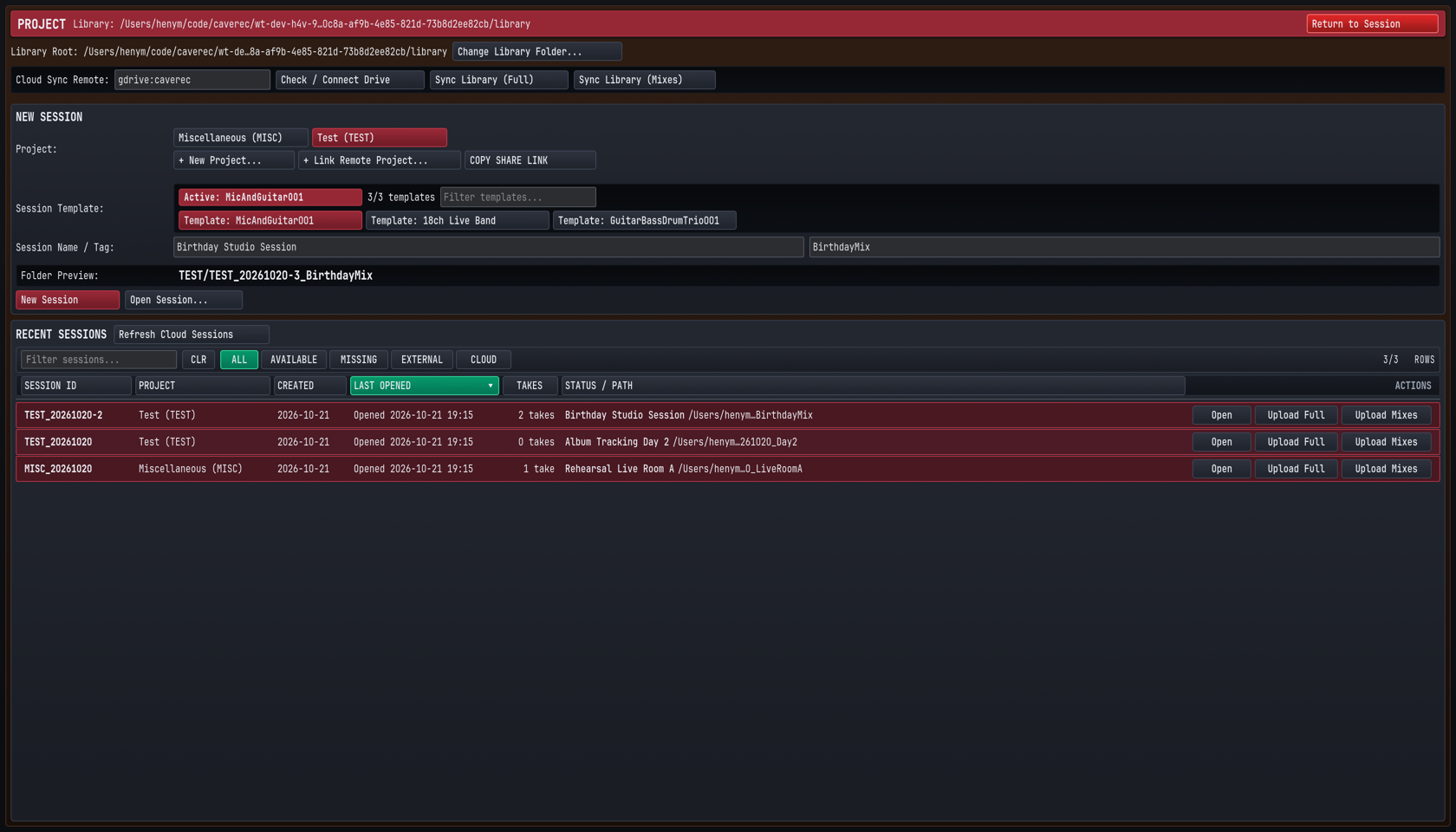
Press CMD + O on macOS (CTRL + O on Windows and Linux) or click the PROJECT button in the Top Transport Deck to open the Project and Session Browser modal.
2.4.1 Configuring the Library Root and Cloud Sync Remote#
At the top of the PROJECT modal, verify your storage paths before creating your first session:
- Library Root: Displays the master local disk directory where all Projects, Sessions, and Takes are stored. Click
Change Library Folder...to point Cave Recorder at a fast internal NVMe SSD or dedicated external Thunderbolt recording drive. - Cloud Sync Remote: Displays the configured Google Drive remote path (for example,
gdrive:caverec). ClickCheck / Connect Driveto verify cloud credentials,Sync Library (Full)to synchronize complete session multitracks across machines, orSync Library (Mixes)to synchronize only the lightweight<ProjectTag>/_Mixes/reference folders.
2.4.2 Creating a New Project or Linking a Bandmate's Remote Project#
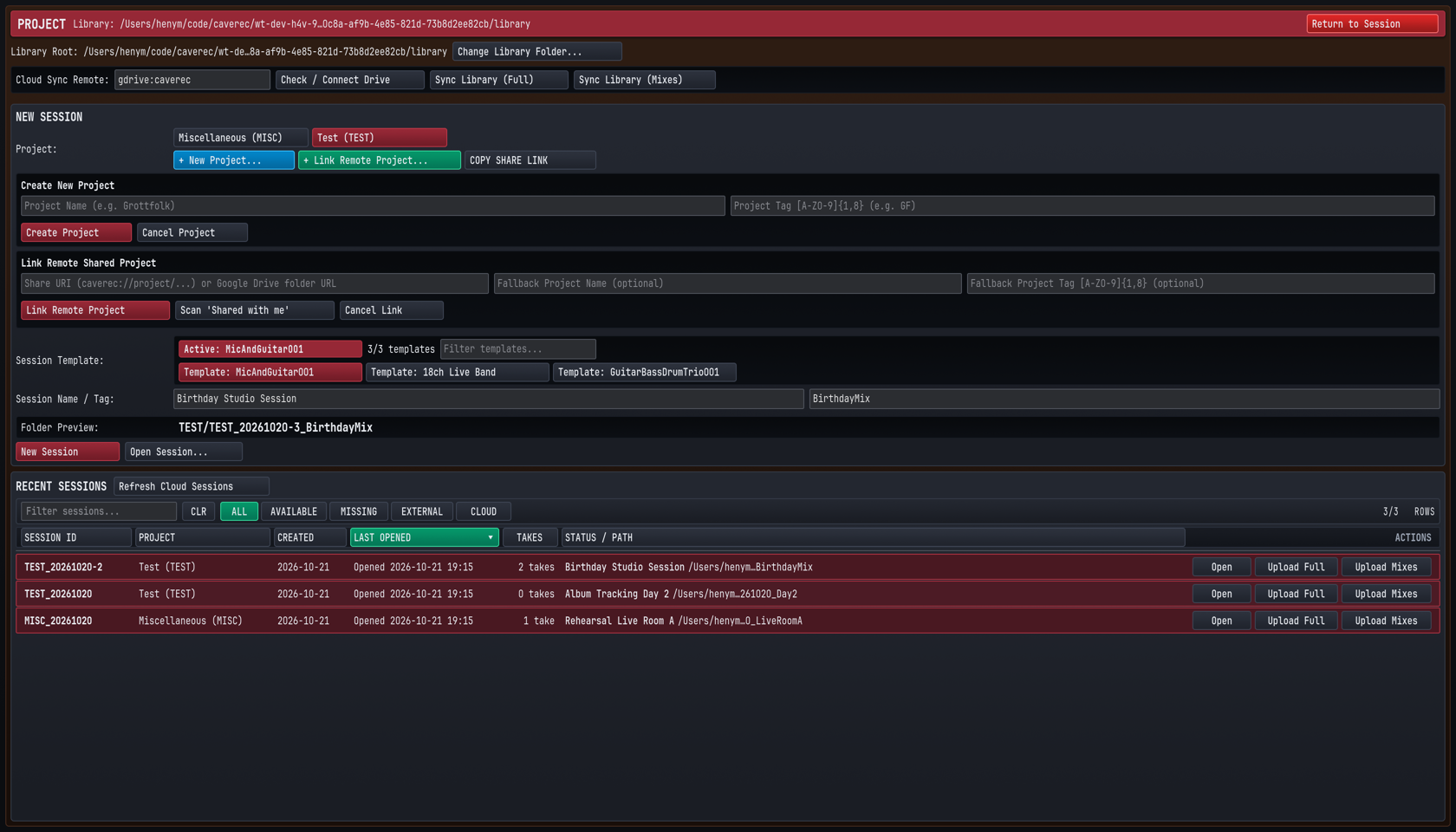
Every Session belongs to a Project (such as a band name, album project, or client ensemble) identified by an uppercase 1-to-8 character Project Tag (GF, TEST, MISC).
- To create a new local Project:
- In the NEW SESSION panel, click
+ New Project...below the Project selector pills. - Enter the Project Name (for example,
Grottfolk) and a short alphanumeric Project Tag consisting of 1 to 8 uppercase letters or digits (for example,GF). - Click
Create Project. Cave Recorder creates<LibraryRoot>/GF/along with<LibraryRoot>/GF/_Mixes/and selects the new Project pill.
- In the NEW SESSION panel, click
- To link a collaborator's shared Google Drive Project:
- Click
+ Link Remote Project...to expand the Link Remote Shared Project form. - Paste a
caverec://project/...share URI (copied from a bandmate'sCOPY SHARE LINKbutton) or a Google Drive folder URL, or clickScan 'Shared with me'to auto-discover Cave Recorder projects shared with your Google account. - Click
Link Remote Project.
- Click
2.4.3 Selecting a Session Template and Starting a New Session#
Once your Project pill is selected (highlighted in burgundy):
- Choose a Session Template: In the
Session Templaterow, select a starting console layout:Template: MicAndGuitar001(Built-In Default Template): Pre-selected on startup,MicAndGuitar001provides a ready-to-record 2-channel singer-songwriter and acoustic rehearsal setup with 0 Subgroup Buses and both stereo auxiliary returns (AUX 1 REVERBPlate Reverb andAUX 2 TAPE DLYTape Delay) active:- Channel 1 (
Mic, routed fromIN 01toMASTER BUS, Record ArmedR): Pre-configured with an active80 HzButterworth high-pass filter (HPF) on Band 1 and an enabled-8.0 dBPost-Fader (PST) send toAUX 1 REVERB(EMT 140 Plate). - Channel 2 (
Guitar, routed fromIN 02toMASTER BUS, Record ArmedR): Pre-configured with an active80 HzButterworth high-pass filter (HPF) on Band 1 and unity0.0 dBfader gain. Template: GuitarBassDrumTrio001: Built-in 11-channel band template with three stereo Subgroup Buses (Guitar Bus,Drum Bus, and parallelDrum Crush Buswith8:1VCA compression), stereo guitars (Guitar L/Guitar R),Bass DI,Room Mic, 4-mic drum kit (Kick,Snare Top,Overhead L,Overhead R), and pre-assigned guitar/vocal overdub channels.Template: 18ch Live Band: Full 18-channel band console (01KickInthroughRoomAmbience) withDRUM BUS,INST BUS, EQ high-pass filters, and VCA compressor defaults.- Any custom studio setup you save via
SAVE TEMPLATEin the Top Deck appears automatically in this list and can be filtered via theFilter templates...search box.
- Enter Session Name and Session Tag: Type a descriptive Session Name in the left field (for example,
Birthday Studio Session) and a short filesystem-friendly Session Tag in the right field (for example,BirthdayMix). - Verify the Folder Preview: Inspect the
Folder Previewline (TEST/TEST_20261020-3_BirthdayMix). Cave Recorder automatically combines the Project Tag, the session date (using the 08:00 local time rollover rule), the daily session sequence number, and your Session Tag. - Launch the Session: Click
New Sessionto initialize the session folder on disk and enter theMIX CONSOLE(CMD + 1 / CTRL + 1). To reopen an existing session instead, locate it in the RECENT SESSIONS table at the bottom (filtering byALL,AVAILABLE,MISSING,EXTERNAL, orCLOUD) and clickOpen.
2.4.4 Pre-Session Track Naming, Input Routing & Gain Staging#
Before the band starts playing the first song, perform a 60-second console check in MIX CONSOLE (CMD + 1 / CTRL + 1):
- Verify Hardware Input Routing (
IN 01 v): On each channel strip, confirm the input selector dropdown (IN 01 v,IN 02 v, ...) matches the physical preamp jack where that microphone or DI box is plugged in. - Name Each Strip Clearly: Double-click any channel strip header (
01KickIn,02SnrTp, ...) to rename it. Clear strip names propagate automatically into every recorded.wavstem filename (01-KickIn_Rec001.wav) and Waveform Timeline lane. - Set Analog Preamp Gain and Digital Input Trim (
TRM): Have the band play at full rehearsal volume:- Adjust your audio interface's physical analog preamp knobs so sustained signals average around
-18 dBFSRMS (in the healthy green zone of the channel meter) and the loudest drum hits peak around-6 dBFS(in the lower amber zone, well below0.0 dBFShardware clipping). - Use each strip's digital
TRMslider (-24.0 dBto+24.0 dB) to fine-tune the level feeding the 8-slot processor rack and recorded pre-fader stem.
- Adjust your audio interface's physical analog preamp knobs so sustained signals average around
- Engage Record Arm (
R) and Input Monitoring (I): ClickRon every active input strip so it lights red, and confirm the Top DeckRAMindicator is lit green so 30-minute retroactive memory begins capturing immediately. - Save Your Room Template: Click
SAVE TEMPLATEin Row 2 of the Top Deck, enter a template name for your room setup, and clickSAVE AS TEMPLATEso future sessions load this exact configuration in one click.